
Every show on Noctern has two parts: a series (the title, artists, description and image shared by every performance) and one occurrence per performance (its own date, price, seating and sales window). The Create Event form builds both at once — one series, plus one occurrence for every date you add.
Before you start
- Venue Admin required. Box office staff cannot create or edit events.
- Your venue must exist and be active. See Venue hub first.
- If the show uses reserved seating, build the seating layout first — it is on the venue hub, not under Events: AdminVenues[venue]Layouts. See Building and editing seat maps.
Steps
Go to AdminEvents and click Create Event. The page is headed Create New Event.
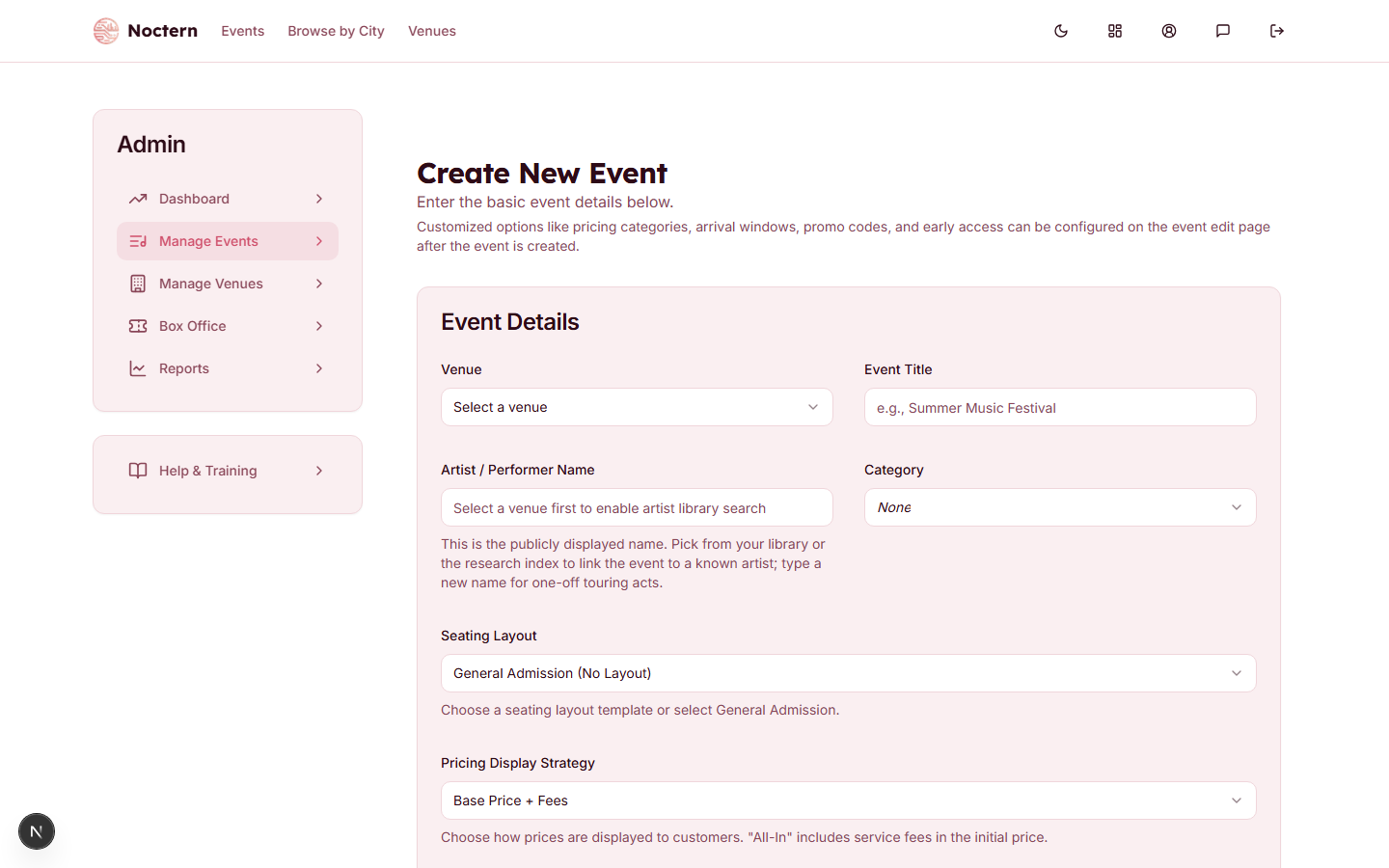 2Event title4Pricing strategy
Create Event form showing title, date, pricing strategy, and status fields In the Event Details card, fill in:
- Venue — which venue the show is at. Changing it resets the layout, image and event type, so pick it first.
- Event Title — the name shown on the public listing and on tickets.
- Artists — one or more performers, in billing order. The first one shows under the title.
- Category — optional; used by the public listing's filters.
- Event Type — Ticketed — Requires ticket purchase, or Open Entry — No Tickets Required (a free listing with no checkout).
Still in Event Details, set how the show is sold:
- Seating Layout — one of your saved layouts, or General Admission (No Layout).
- Pricing Display Strategy — Base Price + Fees (buyers see your price plus itemised fees at checkout) or All-In Pricing (buyers see one price that already includes fees).
- Max tickets per order — pre-filled with your venue's default, which the field keeps following until you type in it. Online sales only; the box office is never limited by it.
Set the price. With no layout you get a General Admission Pricing card: Total GA Tickets Available (the capacity) plus at least one tier with a Tier Name and Price. With a layout, the layout's tiers carry the prices.
A ticketed GA show with no capacity set will not accept checkout.
In the Dates & Times card, set this performance's Start Date & Time and End Date & Time, and optionally:
- Ticket Sales Start — when tickets go on sale. Leave it as Immediately to open sales on save.
- Online Sales Stop — when online sales close. Leave it as No cutoff (box office still sells) unless you want one; it never stops the box office or the door.
Click Add Another Occurrence for each extra night. Every date you add here shares the title, artists, description and image, and gets its own price, seating and sales window.
Add the Event Description and the Hero Image (a 4:3 photo — it is the card image and the page hero). Then fill in any of the optional cards further down: Menu & Merchandise, Event Page Content, Confirmation instructions, Sponsor, Multi-Day Event Passes, Promo codes, Early Access Codes, Arrival Windows. All of them can also be added later from the event's edit page.
Leave the status switch at the bottom on Draft for now. A Draft show never appears in the public listing, search or calendar feeds and cannot be bought. Any of the show's links — the event link (the
/events/…address), the custom URL or the short link — opens for anyone you send it to, which is handy for sharing with an artist. They see a "Draft preview" page that is marked not to be indexed by search engines.Click Save as Draft.
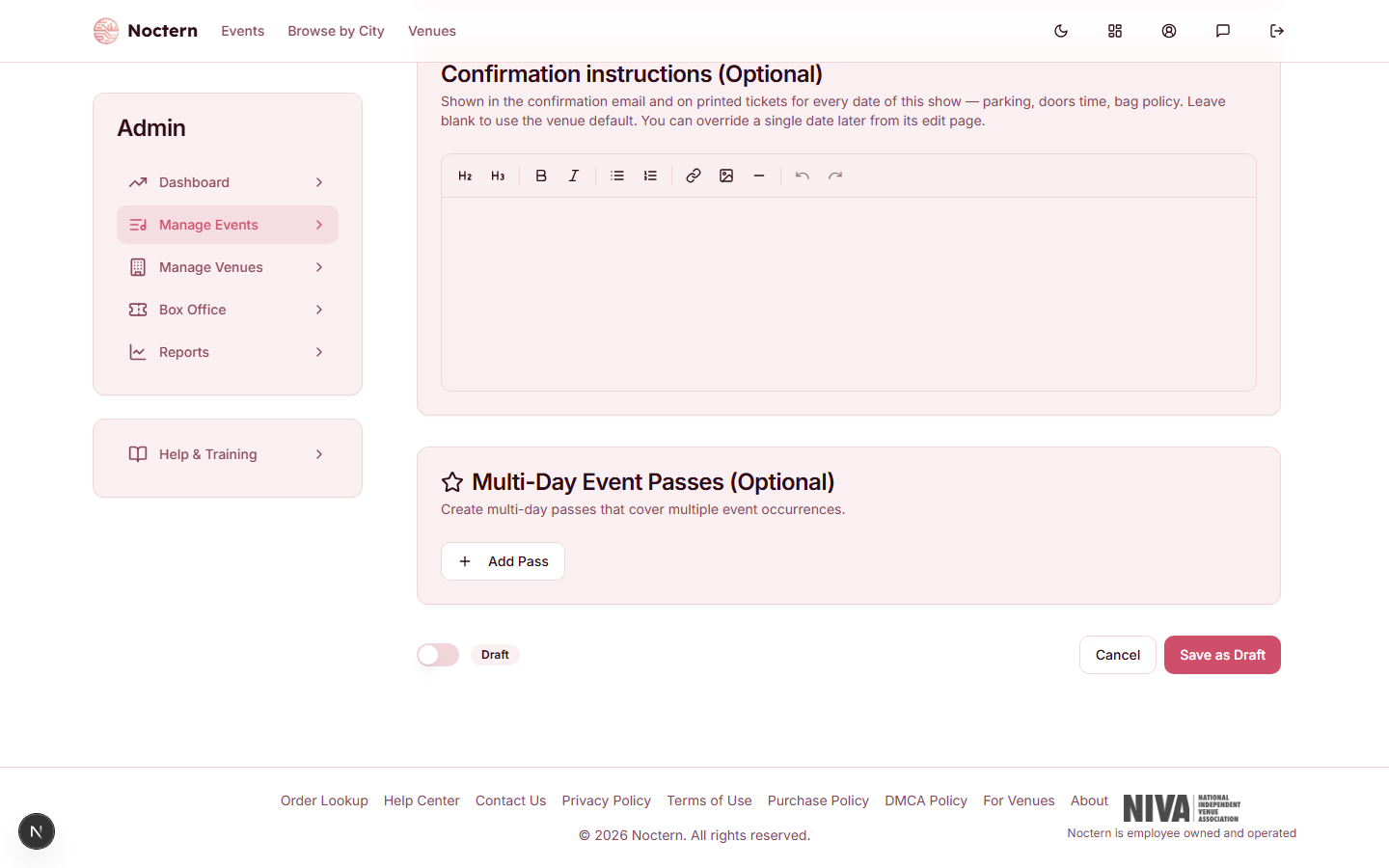 6Draft / Active6Save / Create
Status toggle (Draft selected) and Save button at the bottom of the Create Event form Review the show's public page from the link in the confirmation dialog. When it looks right, open the show's edit page, flip the switch to Active and click Save Changes.
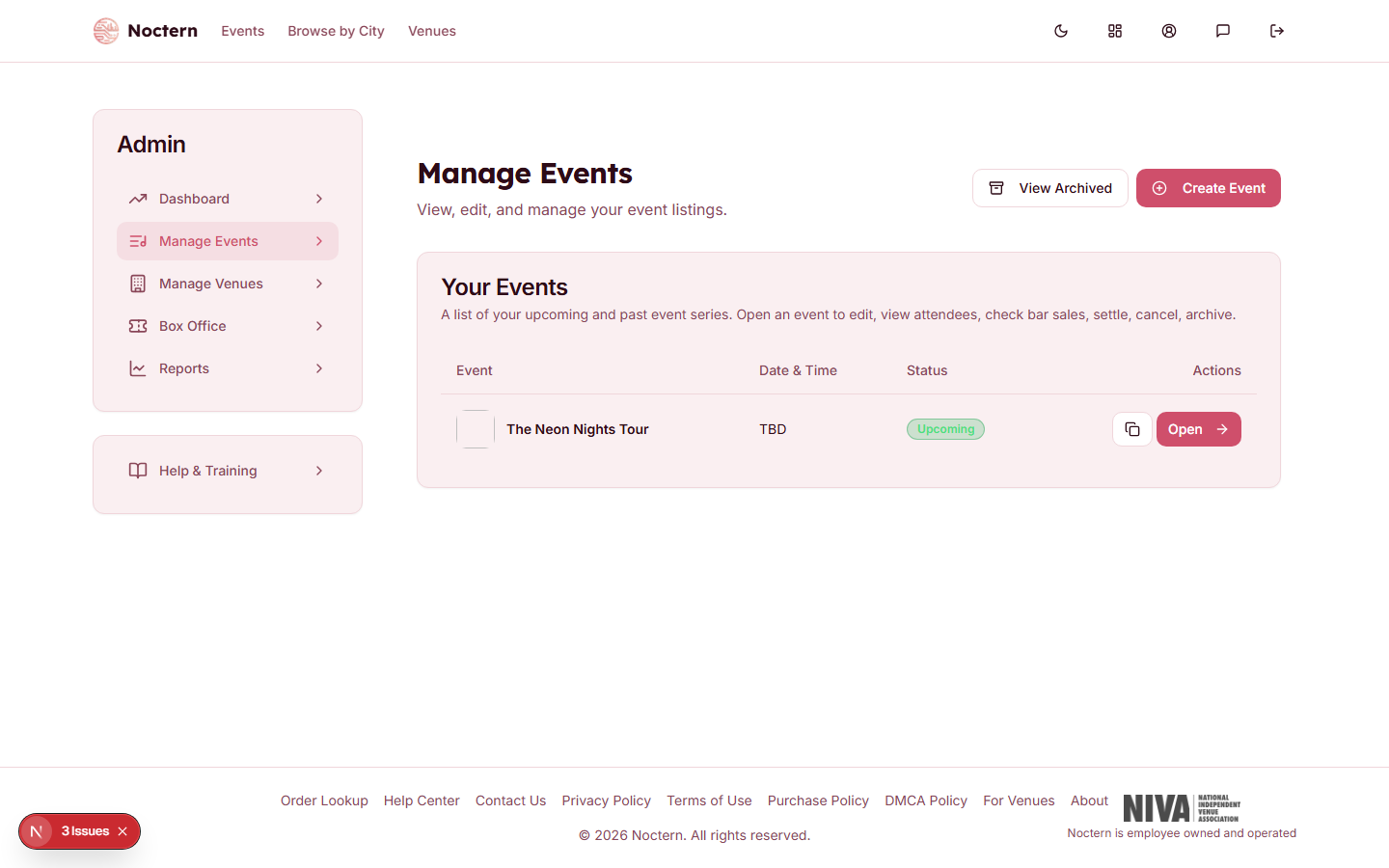 1Event row2Upcoming badge
Admin events list with the Neon Nights Tour showing an Active badge Only Active shows appear in the public listing.
Flipping the switch to Active before you save changes the button to Create Event, so you can publish straight from the create form when you don't need a draft pass.
Dates: add them all up front
The create form is the only place a performance can be added to a series. Copy event on an existing show's page pre-fills this same form (it is headed Copy Event) but saves a brand-new series — it does not add a date to the one you copied. So if you know a show runs three nights, add all three dates here with Add Another Occurrence.
Multi-day passes that span several of those dates need the dates to exist first, which is another reason to add them together. See Multi-day passes.
The box-office PIN window
The End Date & Time you set here is one half of the rule that decides when the door PIN works. A performance's PIN signs a device in from 24 hours before the start until 2 hours after the end time. Outside that window it is refused exactly like a wrong PIN.
If you need to set up door devices earlier, open the show's page and click Activate now on the Door POS card. Full detail: Signing in for an event with a PIN.
Public link
Every show gets a public URL automatically (noctern.com/shows/<slug>, generated from the title). On the show's edit page, open the Public link card to set your own URL instead, and optionally a short link (noctern.com/s/<code>) for print or verbal use.
- Both names are first-come, first-served across all of Noctern, not just your venue — a name another show already uses is rejected.
- Changing either link never breaks the old one: it keeps redirecting to the show.
- A short link is optional and can be cleared at any time; clearing it does not affect the custom URL.
The Public link card is only on the edit page, not the create form.
Short links and nite.to
Every short link also works on Noctern's own short domain, nite.to. A show with the short link gala26 can be shared as nite.to/s/gala26 — fewer characters for texts, posters and anywhere people have to type it. It opens the same show page.
- Set a short link. On the show's edit page, open the Public link card and type a code in Short link. As you type, the line under the box shows both versions it will become —
noctern.com/s/<code>andnite.to/s/<code>. Click Save. - Copy the nite.to version. Under the card (and on the show's page under Links) there is now an Extra-short link row with the
nite.toaddress. Use Copy or Open like any other link. - Download a poster QR code. The shortest of the show's links has a QR code button. It opens a QR code you can download as a PNG (1024 × 1024, for print) or an SVG (scales to any size). With a short link, the QR code points at the
nite.toaddress; without one it points at the show page. The file is named after the code, e.g.gala26-qr.png. - Use nite.to in automatic posts (optional). In venue settings, the Public link card has a Use nite.to short links when sharing switch. It is off by default. When it is on, automatic social posts for a show that has a short link use the
nite.toaddress instead of the full page address. Shows without a short link are unchanged.
The poster QR code is for promotion only. Ticket QR codes, order confirmation emails, My Tickets, PDF tickets, Wallet passes and check-in never change, whichever way the setting is.
On the staging site, the nite.to link is shown with the note "Opens the live site (noctern.com)", because nite.to always goes to the live site.
Tips
All-In pricing is the simplest experience for buyers — the price on the listing is exactly what they pay at checkout, with no fee surprise at the end.
Use Ticket Sales Start to set shows up weeks ahead without them going on sale. The listing shows the show with its on-sale date until the window opens. To let a specific group in before that, add an early access code.
Watch out
A Draft show never appears in the public listing even when every field is filled in, and it cannot be bought. But anyone who has any of the draft's links (event link, custom URL or short link) can open its page, so only share it with people you trust to see the details early. Remember to flip the switch to Active when you are ready to sell.
For All-In pricing, enter the exact price the buyer should pay — not your base price. Noctern works the base out for you. Entering the base by mistake charges buyers more than you intended.
Changing a tier price after tickets have sold does not change what those buyers paid. It only affects later sales.
- Create a show called "Test Show" with today's date plus 30 days.
- Set Pricing Display Strategy to All-In Pricing, enter $35 as the price, and set Total GA Tickets Available to 50.
- Save as Draft and confirm the show does not appear on the public events page.
- Open the show's edit page, flip the switch to Active, save, and confirm it now appears in the public listing.
- Flip it back to Draft to clean up.