
Every performance has its own 6-digit box office PIN. Entering it on the POS app signs the device in for that specific event — there's no separate staff username or password.
Before you start
- Venue Admin generates and shares the PIN with door staff before the event.
- Every performance has its own PIN — a two-night run has two different PINs, one per night.
Signing in
Open the POS app and enter the 6-digit PIN for tonight's performance.
Select the venue from the list if the device has been used for more than one venue.
The app loads the event and you're ready to check guests in or start selling.
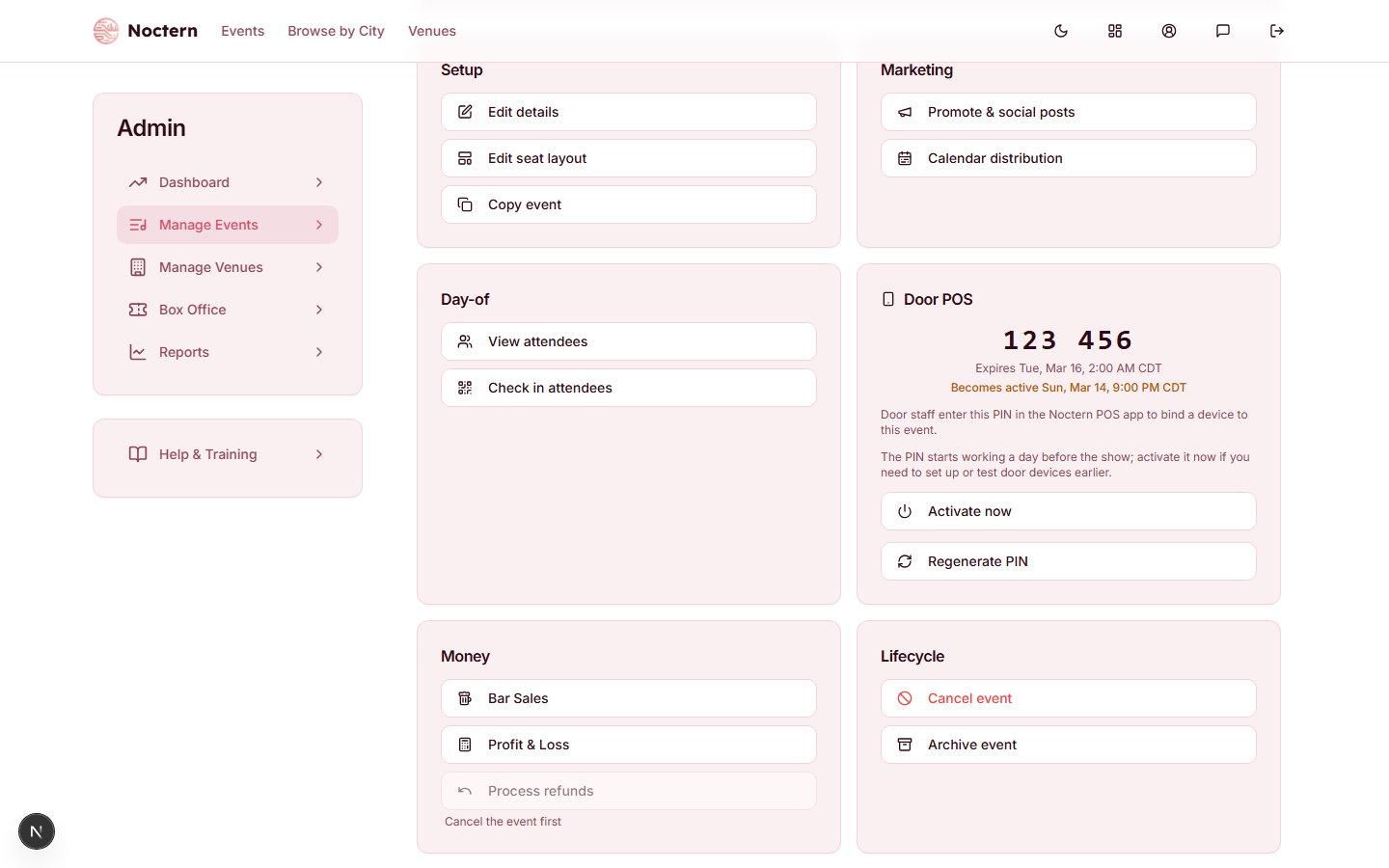
A venue admin finds the PIN on the event's detail page (AdminEvents[event]) in the Door POS card, which also has Activate now and Regenerate PIN buttons.
When the PIN works
A PIN only signs a device in starting 24 hours before the show and until 2 hours after it ends. Entering it outside that window gives the same "Invalid PIN" response as a wrong PIN — it never reveals that the PIN exists.
If you need to set up or test door devices earlier than 24 hours out, a venue admin can click Activate now on the event's Door POS card — box office staff cannot do this from the POS app itself. Once activated, the PIN keeps working for the rest of the window as normal.
The app's underlying sign-in session is shorter than the PIN's own window: it refreshes automatically in the background, but if a device sits unused for a while, it may need you to re-enter the PIN to reconnect. This is normal — just enter the same PIN again.
Multiple devices can sign in with the same PIN at the same time. For a multi-door venue, hand the same PIN to every door and every device works independently, sharing inventory in real time.
Regenerating a PIN
If a PIN leaks or you want to lock out an old device, a venue admin can click Regenerate PIN on the event's Door POS card. This immediately invalidates the old PIN, and every door device signed in with it is signed out within about a minute and must sign in again with the new PIN. Sales a device already took offline before being signed out still upload normally.
Box office staff cannot activate or regenerate a PIN from the POS app itself — both actions are venue-admin only, on the web.