
The screenshots in this guide use the light theme, which is the default. If your app is showing dark mode, click the sun icon at the top right to switch back to light.
Go to AdminVenues[venue]Artists to manage the artists you work with. Artists is in the Programming card on your venue page.
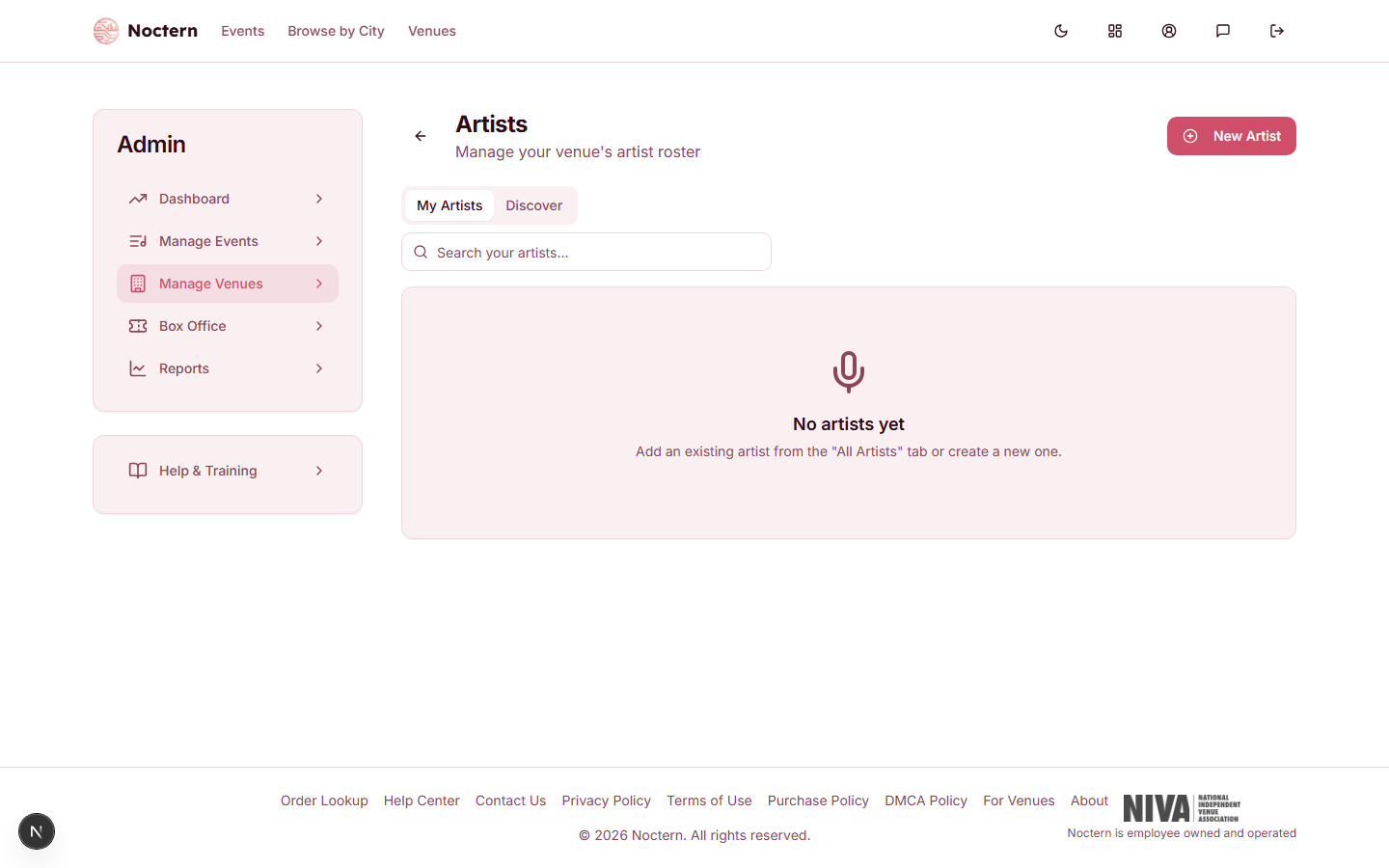
Artist pages are for venue admins. Box-office staff accounts do not have access to artists, deals, or artist payments.
The Artists page
The page has two tabs:
- My Artists — your venue's roster. Use Search your artists... to filter by name or genre. Click a card to open the artist.
- Discover — browse Noctern's research library of artists and use Add to My Artists to put one on your roster.
To take an artist off your roster, click the X on their card and confirm Remove. This only removes the artist from your venue — the artist's profile itself stays on Noctern.
What an artist profile contains
An artist profile has a part that is shared and a part that belongs only to your venue.
Shared profile — visible to every venue that works with this artist:
- Artist Photo
- Name — the act or performer name used on deals
- Bio
- Genres — a comma-separated list (for example, "Rock, Indie, Alternative"). Genres show as badges and are searchable on the Artists page.
- City and State
- Website
Only visible to your venue:
- Your venue's contact — the Name, Email, and Phone of your booking contact for this artist (an agent or manager, for example)
- Private Notes — payment terms, rider requirements, past experiences
Tax Information (W-9) — Tax Classification, Tax ID (SSN or EIN), Mailing Street Address, City, State, and ZIP Code. Click Show to open this section. It is needed only for artists you pay $600 or more in a calendar year, and it is what the 1099-NEC is built from (see Artist payments). The Tax ID is displayed masked after saving.
Adding an artist
- Go to AdminVenues[venue]Artists.
- Click New Artist. The Add Artist page opens.
- Under Find Existing Artist, search by name first. If the artist is already on Noctern, click Add to Venue — you get the existing shared profile instead of creating a duplicate.
- If there is no match, scroll to Or create a new artist and enter the artist's Name (required) and any other details.
- Click Create Artist.
You land on the new artist's page. A new artist you create also gets a claim link, so the artist can take over their own profile — see Claiming an artist profile.
Editing an artist
Open the artist and click Edit, change what you need, and click Save Changes.
Once an artist has claimed their profile, the shared profile is managed by the artist. The Edit page shows "This artist profile is managed by the artist" and the shared fields (name, bio, genres, city, state, website) are read-only for your venue.
The artist's page
Opening an artist shows:
- The profile — photo, name, city and state, genres, bio, and a Website link
- Profile Claim — whether the artist has claimed the profile, and the invite link if they have not
- Agent / Manager — your venue's contact for this artist (shown when you have entered one)
- Private Notes
- Event History — events recorded against this artist, with their role. It reads "No events yet." when there are none.
- Activity Timeline — your venue's own log for this artist. Pick a type (Inquiry, Offer, Booked, Show Completed, Follow Up, Note, or Potential Booking), type a note, and click Add. Only your venue sees these entries.
The artist's page does not list deals. To find an artist's deals, go to AdminVenues[venue]Deals (the Deals & settlements link on your venue page) — every deal in the list shows the artist's name.
Linking artists to events and deals
- Events — when you create or edit an event, start typing in the artist field. Picking a name under Your Artists links the event to that artist's profile and shows a Linked badge. You can also use a name as typed for a one-off act; that does not link to a profile.
- Deals — every deal is created for one artist from your roster. See Deals and settlements.
Fill in Genres when you add an artist. The search box on the Artists page matches genres as well as names, so you can pull up all your jazz acts in one search.