
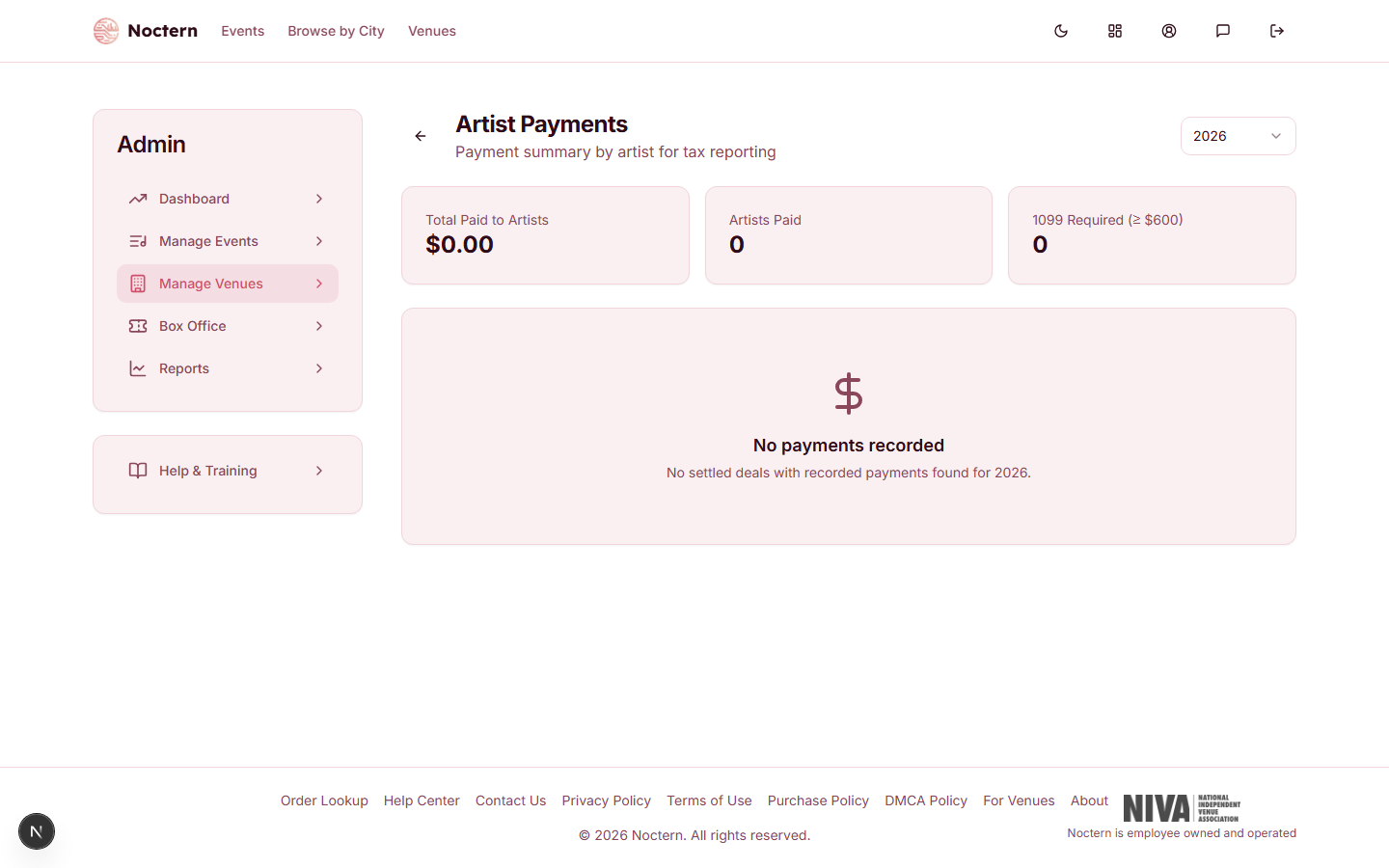
Go to AdminVenues[venue]Artist Payments to see what you paid each artist in a year and to download 1099-NEC forms. Artist payments is in the Money card on your venue page.
Artist payments are for venue admins. Box-office staff accounts do not have access to this page.
Recording a payment
Payments are recorded on the deal, not on the Artist Payments page. Recording a payment is also what marks the deal as settled.
- Open the deal and scroll to the Payment card. If you clicked Calculate Settlement first, the amount is filled in with the Remaining Due to Artist.
- Enter the Amount and choose the Method: Cash, Check, Wire Transfer, Venmo, Zelle, PayPal, or Other.
- Set the Date the payment was made. It defaults to today.
- Optionally add a Note, such as a check number.
- Click Record Payment & Settle.
The deal moves to Settled, and the payment appears on the Artist Payments page and in the deal's Payment card. Each deal holds one payment.
The payment Date decides which tax year the payment counts in. A show played in December but paid in January counts in the new year.
Payment history
The Artist Payments page shows one year at a time. Use the year menu at the top right to pick the current year or any of the five before it.
At the top are three totals for the year: Total Paid to Artists, Artists Paid, and 1099 Required (≥ $600).
Below that, each artist you paid has a card with their total for the year and a table of payments: Event, Event Date, Payment Date, Method, and Amount. Artists are listed from highest total to lowest. Click an event name to open its deal.
Only Settled deals with a payment date in the selected year are included.
1099 reporting
When an artist's payments for the year total $600 or more, Noctern marks them 1099 Required, lists them in the Tax Reporting Required box, and lets you download a 1099-NEC for them. The amount on the form is the total of that artist's recorded payments from your venue for the year.
- Go to AdminVenues[venue]Artist Payments and pick the tax year.
- Find the artist's card and click 1099-NEC.
- A PDF downloads — the recipient's copy (Copy B) of Form 1099-NEC, with your venue as the payer.
The recipient name printed on the form is the Name on the artist's profile. If that is a stage or band name rather than the legal name on their W-9, check the form with your accountant before you use it.
Two things must be in place first, or the download stops and tells you what is missing:
- The artist's W-9 details — Tax ID (SSN or EIN), Mailing Street Address, City, State, and ZIP Code. Enter them in the Tax Information (W-9) section when you edit the artist (see Artist profiles). An artist who has claimed their profile enters these on their own dashboard.
- Your venue's EIN — the EIN field under Edit details on your venue page.
Noctern prepares the form from the payments you recorded — it does not file 1099s with the IRS on your behalf, and it does not send the form to the artist. Give the forms and totals to your accountant or use a filing service.
Only payments recorded in Noctern are counted. If you paid an artist outside of a Noctern deal, that money is not in the total, and an artist could be over $600 without being marked 1099 Required.
Choose Check as the method and put the check number in the Note to make reconciliation easier at year-end.