
The activity log records staff actions at your venue — refunds, edits, exports, check-ins, and more — each with who did it, a reason where one was collected, and a before/after comparison for edits.
Before you start
Venue Admin. Any venue admin can view and export the log — no extra permission from the Team page is needed. Box-office staff can't view it, even though their own actions are recorded in it.
Searching the log
Go to AdminVenues[venue]Activity.
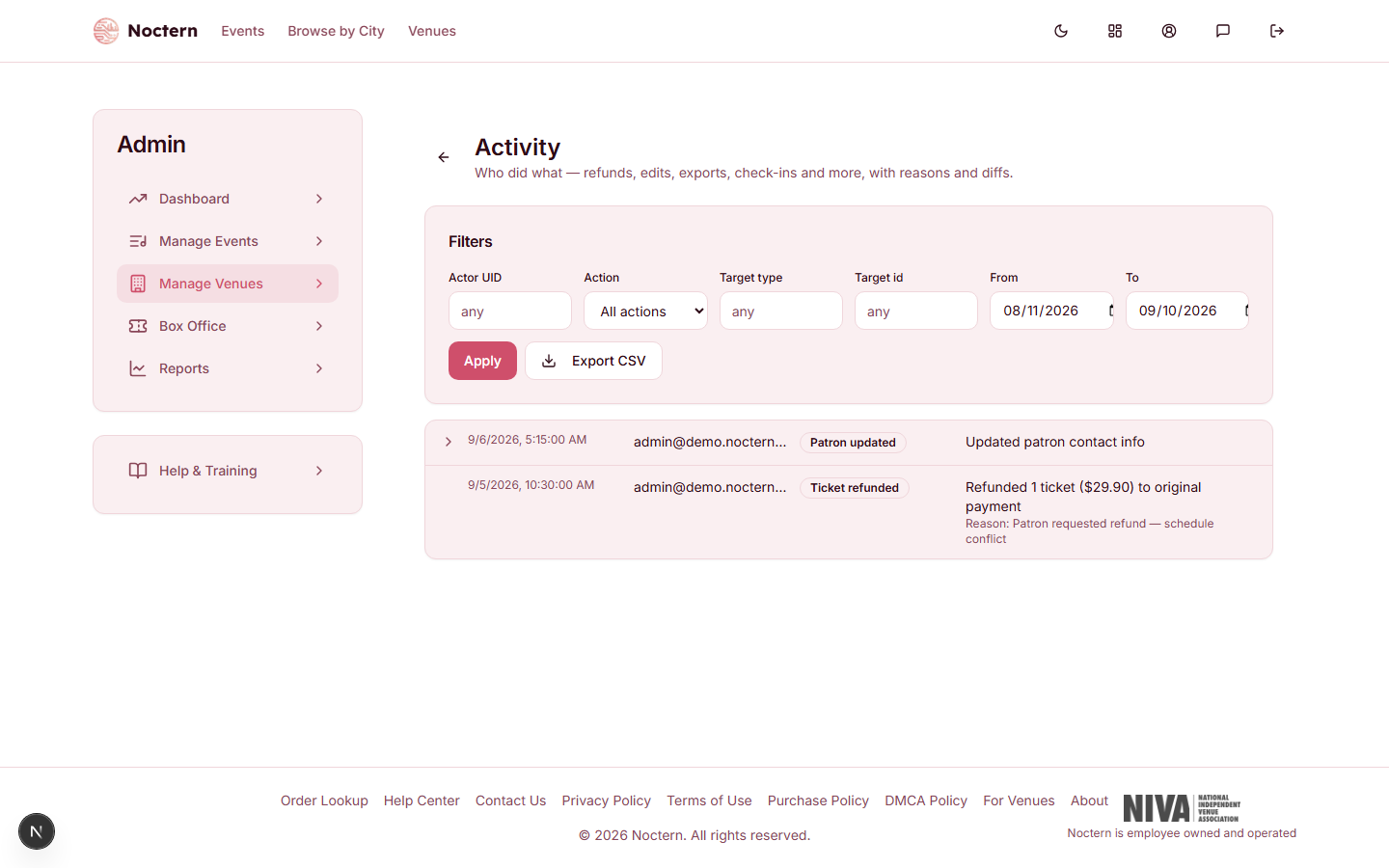
In the Filters card, narrow by Action (grouped by category — refunds, events, patrons, donations, campaigns, exports, and more). The Actor UID, Target type, and Target id boxes take exact internal ids rather than names, so most of the time the Action and date filters are the ones to use.
Set the From / To date range — it defaults to the last 30 days.
Click Apply. Each row shows the time, who did it (with their role), the action, and a summary. Rows for edits have a chevron — click it to see the Before / After values.
Click Load more at the bottom for older rows, or Export CSV to download everything matching your filters.
Sensitive fields — passwords, tokens, secrets — are always left out of the before/after comparison, for everyone.
Two different limits
The on-screen viewer only scans the most recent 2,000 entries in your date range — when it hits that limit it says "Showing the first 2,000 entries", so narrow the date range if you don't see what you're looking for. CSV export goes further, up to 50,000 rows, and exporting is itself logged as an activity entry so there's a record of who pulled the data.
Where else you'll see this data
A patron's own Activity tab shows the same kind of timeline, scoped to just that patron — combining activity log entries with their interactions, gifts, and purchases in one feed. Opening a patron needs the Donor data permission (set on the Team page).
Watch out
By default, entries are kept for 730 days (about two years) and then deleted. If your venue needs a different retention window, ask Noctern support to set it — it can never be shorter than 90 days, and there's no self-serve control for it in your venue settings today.
- Open the demo venue's Activity log and filter to the last 7 days.
- Find the sample refund entry and expand it to see the recorded reason and amount.
- Try Export CSV and confirm the export itself later shows up as its own log entry.