
The screenshots in this guide use the light theme, which is the default. If your app is showing dark mode, click the sun icon at the top right to switch back to light.
You can buy tickets from any browser — no app required, and no account required either. Here is how the process works from start to finish.
Finding an event
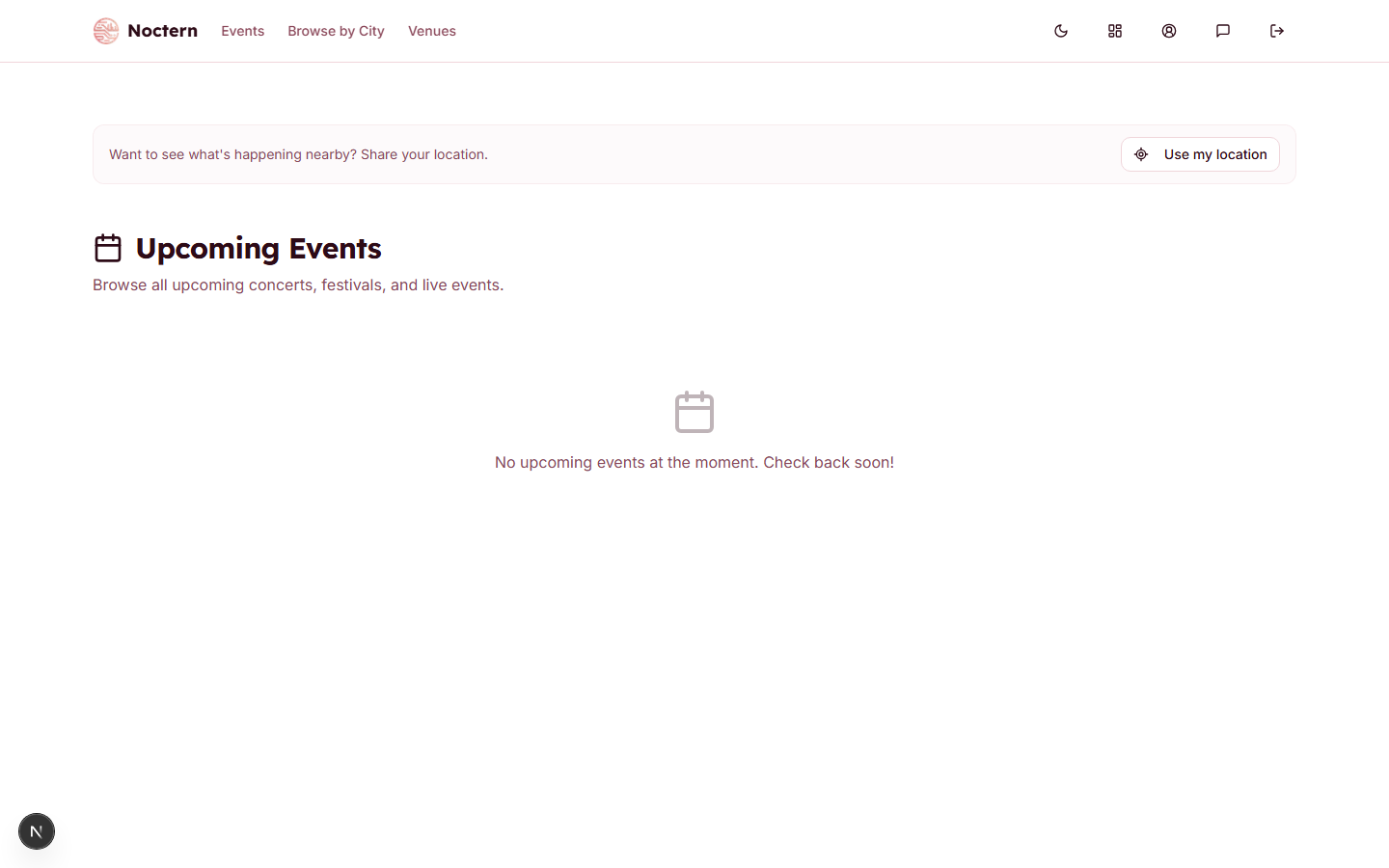
Go to Browse Events (the Events link at the top of the site). The page lists every upcoming event, soonest first, with events near you in a strip at the top. A venue's own page lists just that venue's events — use the Venues link, or the link the venue gave you.
Click an event card to open the event page.
Selecting seats or tickets
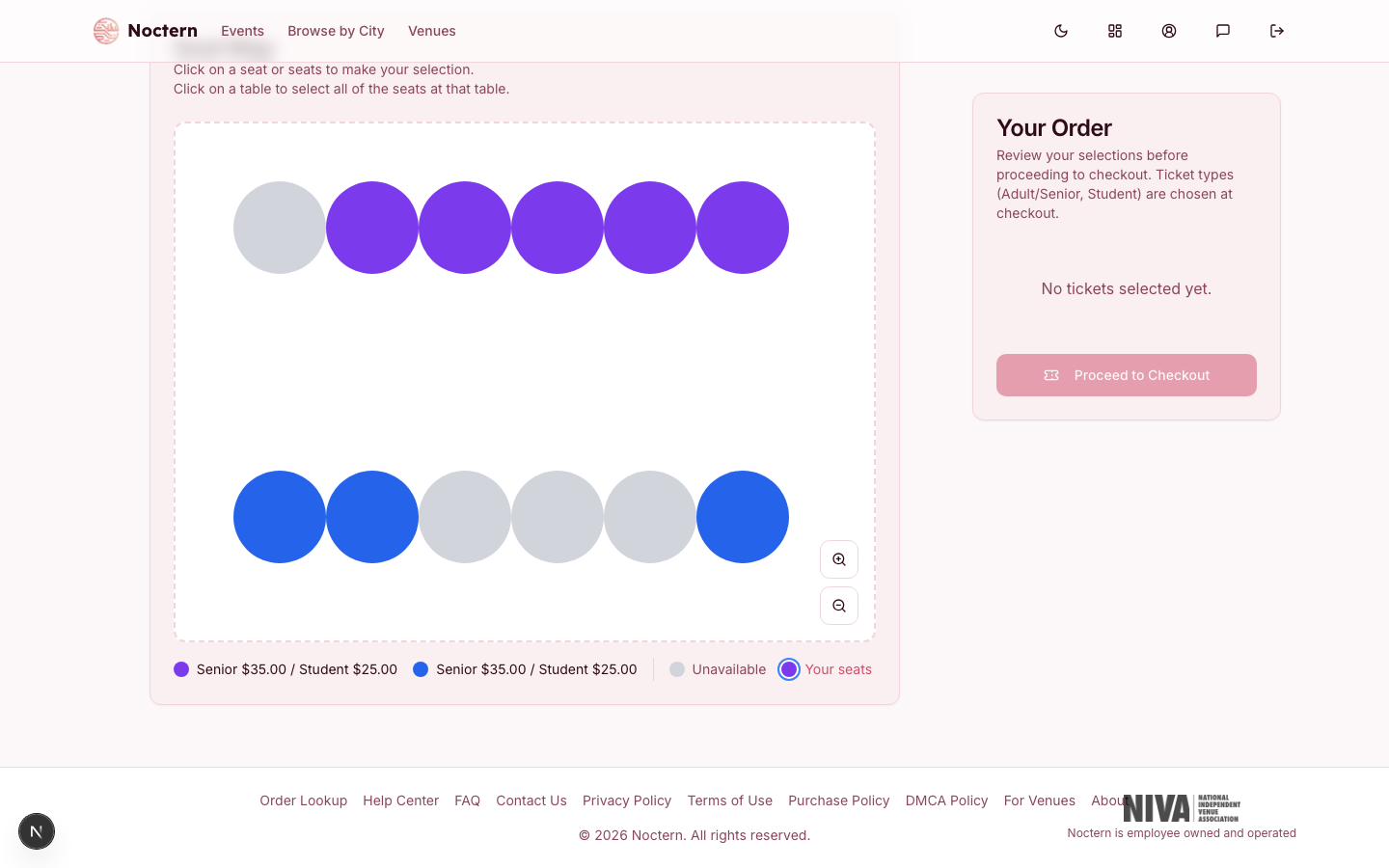
Reserved seating events show an interactive seat map. Click a seat to select it — selected seats are labeled Your seats. Click again to deselect. A seat that's already sold or otherwise unavailable is plain grey, no matter which pricing tier it belongs to. If the venue has marked any seats wheelchair-accessible, an Accessible entry appears in the map's legend. When you're ready, click Proceed to Checkout.
General admission events show a quantity picker. Choose how many tickets you want for each tier (for example, Adult: 2), then click Checkout.
Once you select seats, a 15-minute hold starts. The checkout page shows the time left — "Seats held for 14:59 — complete your purchase before time runs out". If the timer runs out, the seats are released for others and you are asked to pick again.
Choosing a pricing category
Some events offer pricing categories within a tier — for example, Senior, Member, or Student. A dropdown appears next to each ticket in your order summary. Select the category that applies to you.
A category only appears while it is on sale. If one you expected is missing, its sale window has closed for online orders — ask the venue's box office.
Applying a promo code
If you have a discount code, enter it in the Discount/Promo code field in the order summary and click Apply. If the code is valid, a discount line appears showing the amount saved.
If the code can't be used you'll see Invalid promo code with the reason:
- That code is not valid for this event — the code does not exist, is misspelled, or belongs to a different event
- This code is not active yet or This code has expired — you are outside the dates the venue set
- This code is no longer active — the venue switched it off
- This code has reached its redemption limit — it has been used as many times as the venue allows
A promo code can't be combined with a membership benefit on the same order — see Becoming a member.
Choosing how you get your tickets
If the venue offers more than one delivery method (for example email, will call, or mail), a Delivery choice appears in the order summary with the price of each, or Free. A delivery fee is shown on its own line in your total.
Guest or account
If you aren't signed in, the payment card reads Check Out as a Guest, or Sign In:
- Log In or Sign Up — your tickets and order history are kept in your profile.
- Continue as Guest — enter your Full Name and Email. Your tickets and confirmation go to that address, so check it carefully.
If your order is free (for example a fully discounted ticket) and you are checking out as a guest, Noctern emails you a 6-digit code to prove the address is yours. Enter it and click Confirm email before you complete the order. Paid orders are never asked for a code.
Paying
Noctern uses Stripe for secure card payments. Just above the card fields, a line confirms where your order is going: Tickets and confirmation go to followed by your email address. If you are a guest and the address is wrong, click Wrong email? Change it — you go back to the name and email form with your details filled in, and your seats stay held.
Enter your card number, expiry, and CVC. If your device and browser support it, Apple Pay or Google Pay may be offered as a faster option.
Click Pay Now to complete the purchase. Your card is charged immediately. If nothing is owed — a free order, or a gift certificate that covers everything — the button reads Complete Order instead and no card is needed.
Your confirmation
After payment you see Payment Successful! If you bought as a guest, the page names the address your tickets were sent to. If you were signed in, it offers View My Tickets.
You also receive an email titled "Your Tickets for" followed by the event name, with:
- Your tickets attached as one PDF, each with a QR code for check-in at the door
- A calendar file so you can add the event to your calendar
- Add to Apple Wallet and Add to Google Wallet buttons, when those wallets are available for the venue
Sign in before buying so your tickets and order history are saved to your profile. You can also buy as a guest — your confirmation email is all you need to get in. If the email you give as a guest already belongs to a Noctern account, the order is added to that account.
The seat hold timer is stored in your browser. If you open checkout in a different browser or clear your cookies, the hold may not transfer. Complete the purchase in the same browser tab.