
A year-end giving statement is a single PDF, titled "Annual Giving Statement", that lists everything a donor gave in a tax year with the tax-deductible amount of each gift — the one document they keep for their tax records, as opposed to the acknowledgment they got after each individual gift.
Before you start
Venue Admin can generate, email, and download statements — no extra permission is needed for this page. Box-office staff can't open it.
Generating a batch
Go to AdminVenuesFundraisingStatements.
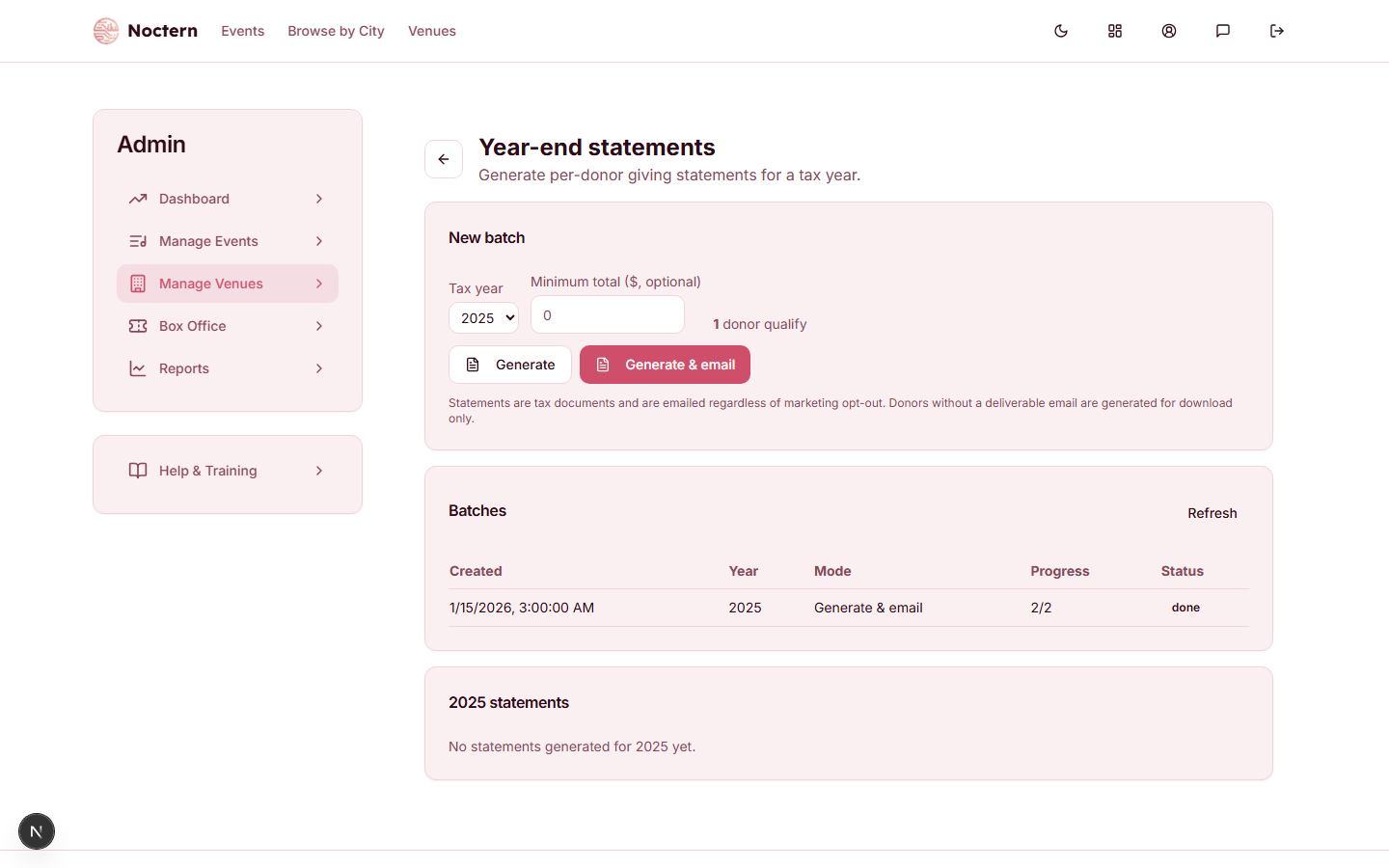
In the New batch card, pick a Tax year — the list offers the current year and the three before it, and opens on last year. Optionally set a Minimum total ($, optional) to skip small donors. The card shows how many donors qualify as you adjust these.
Click Generate to create PDFs for download only, or Generate & email to also email every donor with a deliverable address.
Watch the batch in the Batches table. It runs in the background, so it can sit at "queued" for several minutes before it starts. The Progress column shows finished out of total, plus a failed count if any statement could not be produced. The table does not update on its own — click Refresh.
Once a batch finishes, the statements table below it — headed with the tax year you have selected — lists one row per patron: the Deductible total, the number of Gifts, the date it was Emailed (a dash if it wasn't), and a PDF link. The Patron column shows the patron's record ID rather than their name; click it to open the patron.
Statements are tax documents, so they're emailed regardless of a donor's marketing opt-out. Donors without an email address, and donors whose address has bounced, are still generated — just for download only, not emailed.
Each patron has one statement per tax year. Running another batch for the same year rebuilds the PDF with the latest gifts, but a donor who has already been emailed that year's statement is not emailed again. To get a corrected statement to them, download the PDF and send it yourself.
What's included
Only completed gifts dated within the tax year (in your venue's time zone) count. The deductible amount on each line is the gift amount minus any fair-market value of goods or services received, floored at zero. A partly refunded gift counts for what the donor actually gave; a fully refunded gift drops out. Fee-cover add-ons, voided gifts, and soft credits are all excluded.
The PDF shows your organization's name (your 501(c)(3) Legal Name, or the venue name when none is saved), your address, the donor's name and mailing address, a line for each gift (date, receipt number, fund, amount, fair-market value, deductible), and the totals. A gift to a restricted fund is marked "(restricted)" on its line. When a donor gave to more than one fund, a Summary by fund follows, with restricted funds listed last and labelled "Restricted".
The statement closes with your Donation Receipt Statement. When none is saved, it closes with this standard sentence instead: "No goods or services were provided in exchange for these contributions except as noted (fair market value shown). Please retain this statement for your tax records."
Watch out
Generating a batch does not require your venue's EIN to be set — the EIN only appears as an optional line under your organization's name if you've entered it in EIN (Optional), in the Venue Details card on AdminVenuesEdit.
The standard closing sentence does not name your organization or its 501(c)(3) status. If your statements need that wording, save it as your Donation Receipt Statement in the Nonprofit Settings card on AdminVenuesEdit — the same text also closes your gift acknowledgments. See Nonprofit settings.
Statements are one per patron, not one per household, and two patron records for the same person produce two statements. Merge duplicate patrons before you run the batch.
- Open the demo venue's Statements page, pick a Tax year, and watch the donor count change as you adjust the minimum total.
- Start a batch with Generate (not Generate & email), then click Refresh in the Batches card until it reads "done".
- Open one PDF from the statements table and find the closing statement at the bottom.