
Noctern proposes possible duplicate patrons for you to review — it never merges anything automatically. You decide which records, if any, are actually the same person.
Before you start
- Venue Admin. Any venue admin can open the review queue, keep a group separate, or snooze it.
- To actually merge, you also need the Donor data permission (set on the Team page) — the merge dialog has to load both patrons' full records.
- Box-office staff can't review or merge duplicates.
Reviewing candidates
Go to AdminVenues[venue]PatronsDuplicates — the page is titled Possible duplicates.
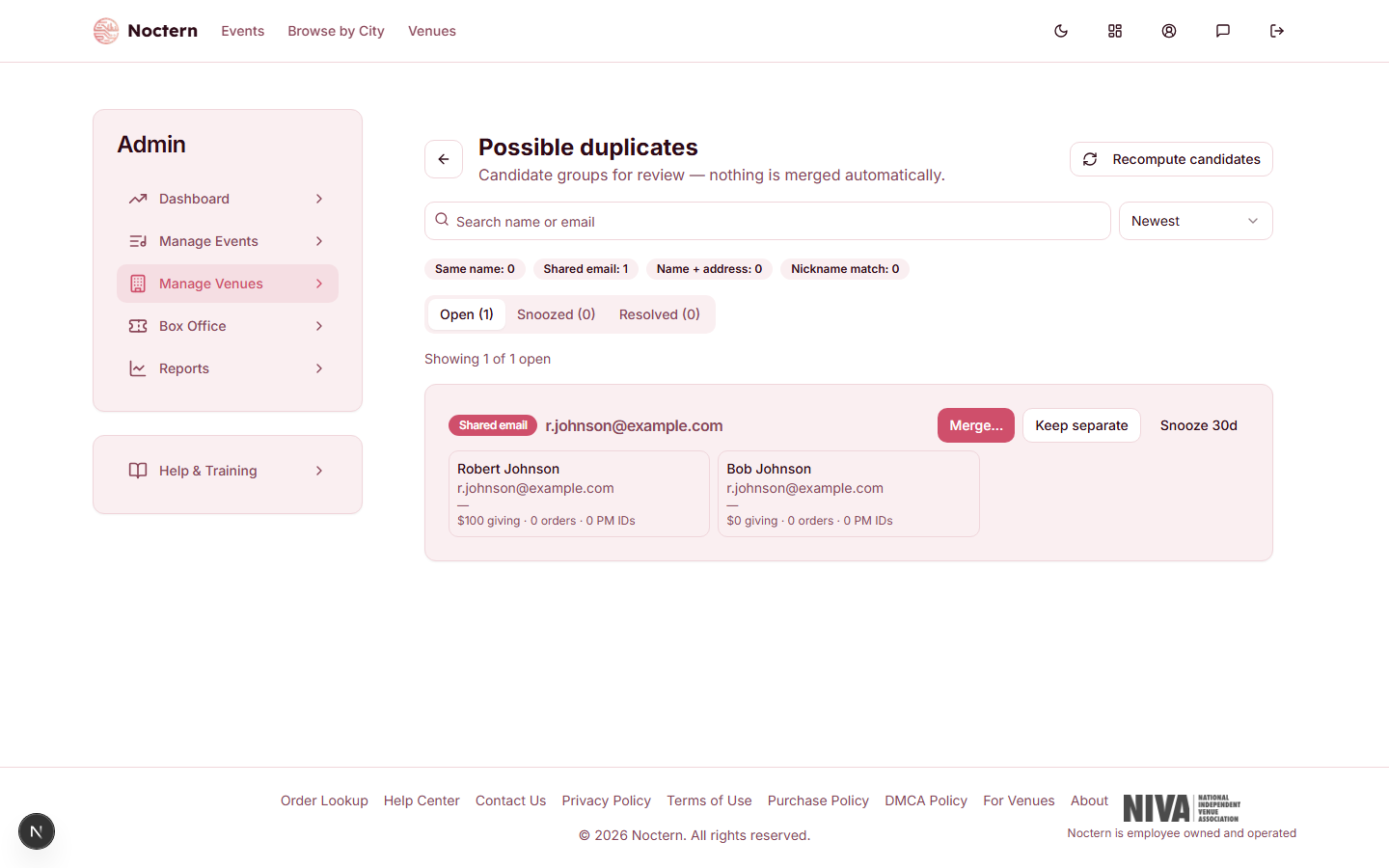
Candidate groups are flagged by one of four signals, shown as a badge on each group:
- Same name — an exact first + last name match.
- Shared email — two or more patrons with the same email address but different last names (often a couple sharing one inbox, so these are usually kept separate).
- Name + address — the same last name, the same street address, and the same first-name initial. (Couples living at the same address with different first initials are deliberately not flagged by this signal.)
- Nickname match — a common nickname variant of the same name (Bob/Robert, and similar).
Use the Open / Snoozed / Resolved tabs, the Search name or email box, or a signal chip to find a group. Sort by Newest or Most valuable.
For each group on the Open tab, choose Merge…, Keep separate (dismisses the pairing for good), or Snooze 30d (hides it for 30 days).
If you've just finished an import or a batch of manual entries, click Recompute candidates to refresh the list.
Merging
Click Merge… on a group to open the Merge patrons dialog. Click the card of the patron you want to keep — it's badged Survivor; the other is badged Will be merged.
For each field (First name, Last name, Email, Phone, Address), choose which record's value wins. Tags are combined from both records, and every external system id is kept on the survivor — nothing is dropped.
Review What moves to the survivor — it counts the purchases, imported historical orders, donations, pledges, recurring gifts, interactions, and other records that will move, before anything happens.
Click Merge patrons, then Confirm — merge into [survivor's name].
You can also start from a single patron: open their detail page, click Merge into…, search for the other record by name or email, and click Choose.
Once merged, the losing patron's page redirects visitors to the survivor automatically, and every purchase, gift, pledge, and interaction re-points to the survivor. Giving and ticket totals are recalculated as the last step, and the merge is recorded in the Activity log and in the survivor's Merge history on the Details tab.
If a merge fails partway through (a network blip, for example), reopening it shows a Resume merge button — it's safe to resume, since each step only runs once.
Watch out
A merge is not reversible by default. Undo-within-30-days exists as a feature, but it isn't a self-serve setting — ask Noctern support to turn it on for your venue if you want it. Once it's on, an Undo button appears next to each merge in the survivor's Merge history on the Details tab, for 30 days after the merge.
- Open the demo venue's duplicate review queue and find the "Shared email" group.
- Open the merge dialog and check the What moves to the survivor counts before confirming anything.
- Practice Keep separate on a group you don't intend to merge — confirm it drops out of the Open tab.