
The Patron lifecycle report sorts your ticket-buying audience by how often and how recently they have come. It answers: who is new, who keeps coming back, and who have we lost?
Open the Reports hub (Reports in the admin sidebar) and click Patron lifecycle under Patrons.
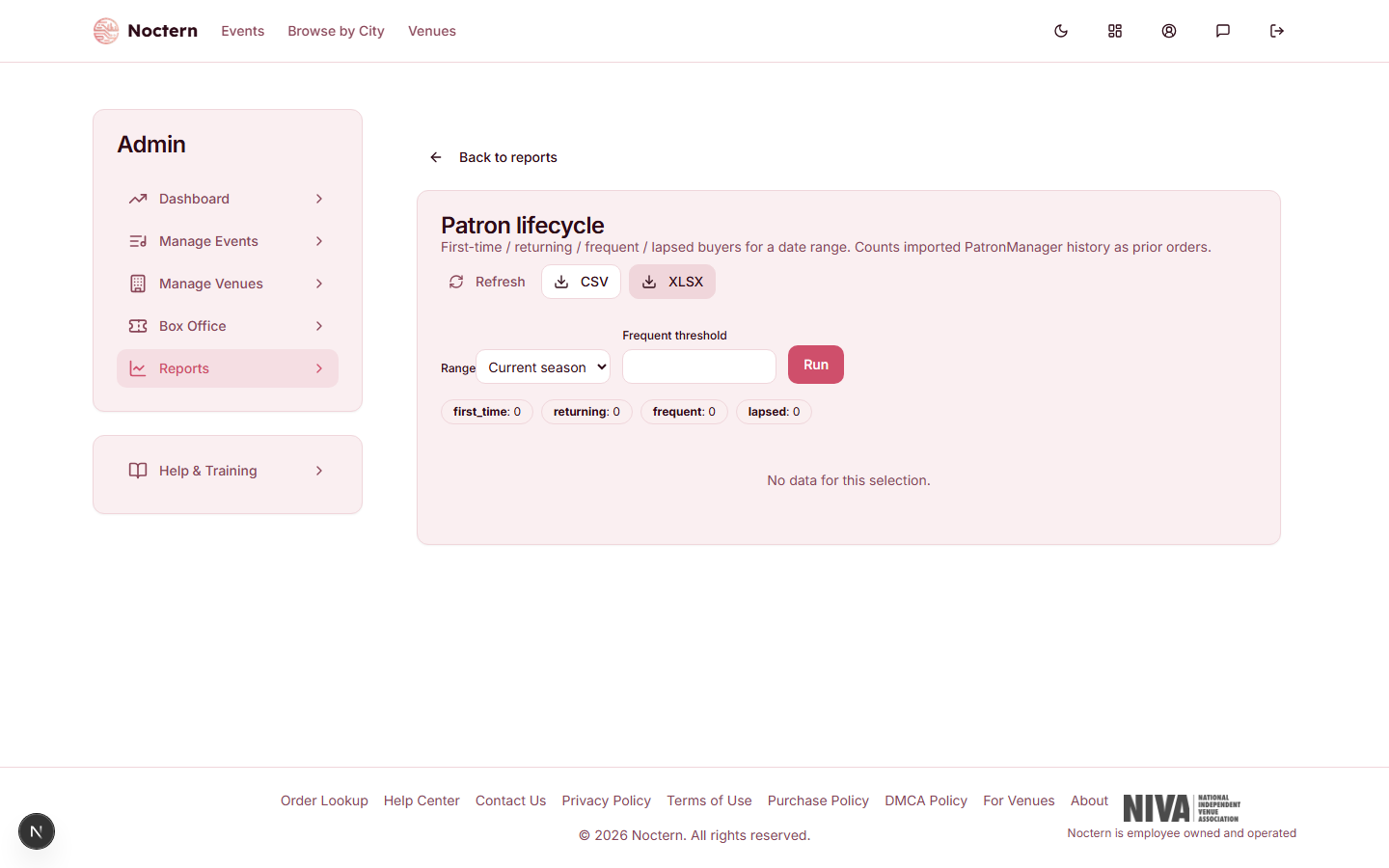
Controls
- Range — Current season (the default), Last 7 days, Month to date, Prior month or Last 12 months.
- Frequent threshold — how many orders in the range make a patron Frequent, for this run only. Leave it alone to use your venue's setting.
Click Run after changing either.
What counts as an order
Here an "order" is one patron attending one performance. A single purchase covering three different performances counts as three. Orders are dated by the performance date, not the day the tickets were bought — so tickets already sold for a show later in the range count now, and a show after the range does not.
Orders imported from a previous ticketing system count as well.
Classifications
Each patron lands in exactly one group. The report checks them in this order:
| Classification | Who is in it |
|---|---|
| Frequent | Has at least the threshold number of orders within the range (3 unless you change it) |
| First-time | Has an order in the range, fewer than the threshold, and none before the range |
| Returning | Has an order in the range, fewer than the threshold, and at least one before it |
| Lapsed | Has no order in the range, and their last order is older than the lapsed threshold (18 months unless you change it) |
Two details that are easy to miss:
- Frequent is about this range, not lifetime. A patron with twenty orders over the years but one this season is Returning. A brand-new patron who comes three times this season is Frequent, not First-time.
- Lapsed is measured back from the end of the range. With Current season selected, that end may be months away, which makes the lapsed test stricter than "18 months before today".
Patrons with no order in the range who are not yet lapsed are not listed at all.
Reading the report
Four tiles — First-time, Returning, Frequent, Lapsed — give the count in each group. One table underneath lists every patron:
| Column | What it shows |
|---|---|
| Patron / Email | The patron |
| Classification | One of the four above |
| Orders in range | Orders inside the selected range |
| First order / Last order | Their earliest and latest order |
| Lifetime orders | Every order they have |
The list is sorted by Orders in range, then Lifetime orders, largest first. It cannot be re-sorted or filtered on screen — download it and filter Classification in a spreadsheet to work with one group.
CSV and XLSX download the whole list, all four classifications together.
Setting the thresholds for your venue
Open your venue from Manage Venues and click Edit details in the Setup card.
Open the Reporting: Seasons & Lifecycle card.
Set Frequent buyer threshold (orders in range) and Lapsed after (months without an order).
Click Save reporting settings.
Match these to how your audience really attends. A venue with a short season may want a lower frequent threshold than one with a show every week.
The same card holds your seasons — a name, start and end for each — which is what Current season means on every report.
What is and isn't counted
- Completed purchases and imported history count. Ticket transfers and membership purchases do not.
- The data is rebuilt once a night. Today's sales appear tomorrow; Refresh does not pull them in.
- Updated … ago shows when this report was last worked out, which can be up to 12 hours ago.
When there's no data yet
The tile is missing from the Reports hub until your venue has at least one order, from Noctern or imported. If you reach the page anyway, it tells you there are no orders to classify yet.
Run the report for Last 12 months and download the XLSX. Filter Classification to Lapsed and sort by Last order, oldest first — those are the patrons you have gone longest without seeing.