
A patron is a CRM record for a person at your venue — a ticket buyer, a donor, or both. It's distinct from a Noctern user account: a patron can exist with no login at all (someone who bought a gift certificate for a friend, or gave by check), and a single person's patron record is what ties their giving and ticket history together over time.
The screenshots in this guide use the light theme, which is the default. If your app is showing dark mode, click the sun icon at the top right to switch back to light.
Before you start
- Venue Admin with the Donor data permission (set on the Team page) can use everything in this article. The venue owner always has it. A venue admin without Donor data sees an empty Patrons list.
- Box-office staff don't need that permission to look up or create a patron while selling — that's what the box office patron panel is for. They can also load the Patrons list itself, but they can't open a patron's detail page, edit a patron, or use Export list.
How patrons are created
Automatically — a patron record is created the first time someone buys a ticket or makes a donation at your venue, matched by email where possible.
Manually — box-office staff and venue admins can create a patron inline while looking up a customer in the box office. If a patron with that email already exists, Noctern reuses it instead of making a second one.
By import — bringing Contacts over from a previous system creates patrons in bulk. See the Importing Patron Data topic.
The patron list
Go to AdminVenues[venue]Patrons.
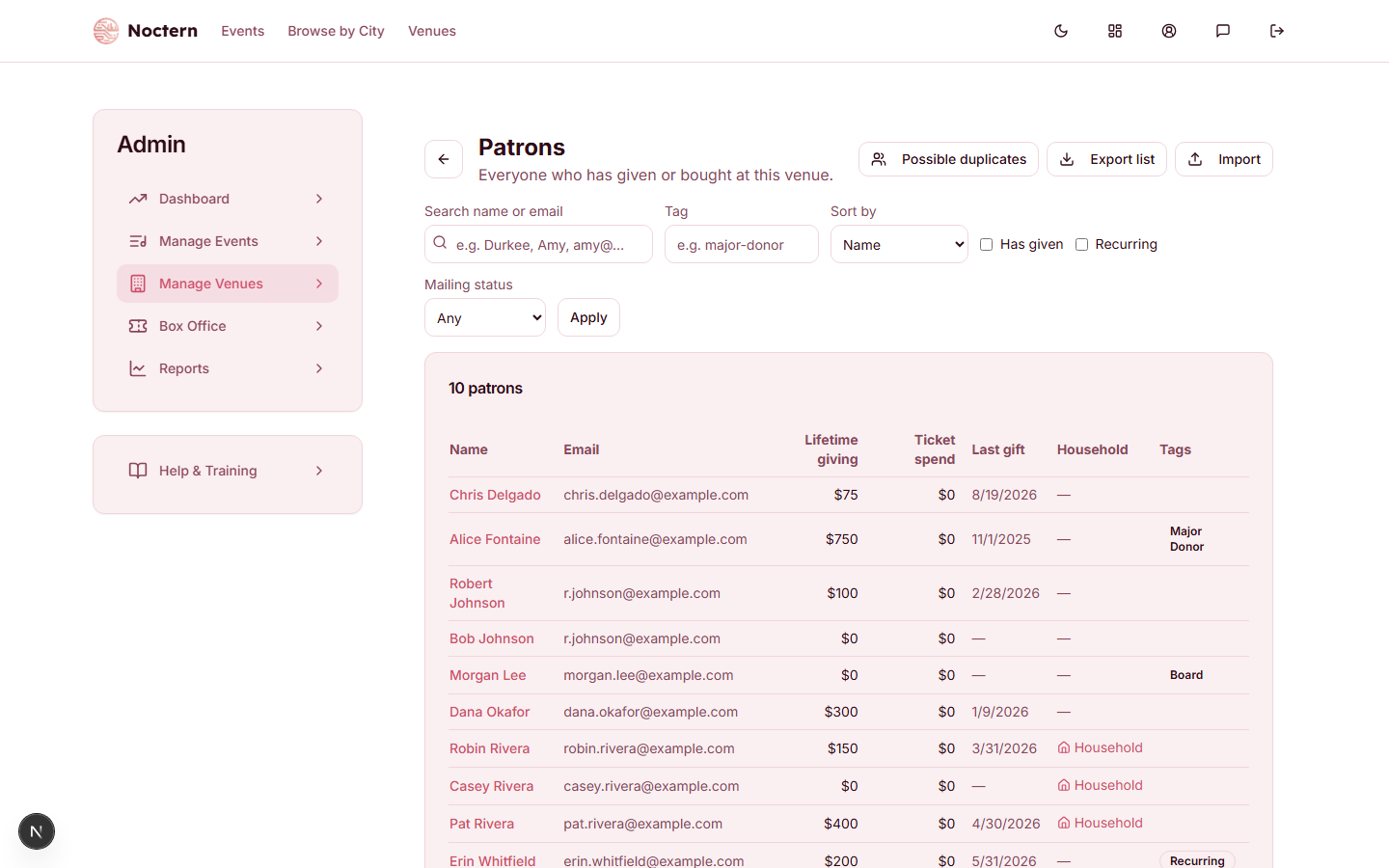
Type the start of a first name, last name, or email in the Search name or email field, or a tag in the Tag field, then press Enter or click Apply.
Use Sort by to order the list by Name, Lifetime giving, Ticket spend, or Most recent gift.
Check Has given or Recurring to narrow the list to donors or active sustainers, or set Mailing status to Do not mail / Mail returned to find patrons whose postal address needs attention.
If your venue has custom fields, click More filters to filter on them, then Apply filters.
Click Possible duplicates to open the duplicate-review queue, or Import to bring in Contacts from a previous system.
The table shows Name, Email, Lifetime giving, Ticket spend, Last gift, Household, and Tags (with a Recurring chip for active sustainers). Click Load more at the bottom for the next page. The list does not show order counts or year-by-year giving splits — order counts live on the patron's own detail page, and the this-year / last-year giving comparison lives on their household's page.
Key fields
- Tags — freeform labels you define for segmentation, like "Board" or "Major Donor."
- External records — if this patron came from an import, their id in the previous system is kept on the Details tab, so importing the same file again updates the existing patron instead of creating a duplicate.
- Lifetime giving / Lifetime ticket spend — running totals kept up to date automatically as gifts and orders come in.
If a patron's record shows ticket spend but you can't find a matching Noctern order, check their Tickets tab — some of that spend may be pre-Noctern history brought in by import, which is labeled separately and never counted as Noctern revenue.
Exporting the list
Click Export list to open the Export patron list dialog.
Check Mailing export (one row per household, address columns) if you want a mailing list. Checking it also turns on Exclude do-not-mail patrons and Exclude returned-mail patrons — uncheck either if you want those patrons included.
Building a phone list? Check Exclude do-not-call patrons (for phone lists). Every export includes a do-not-call column either way.
Click Download CSV.
Exporting the patron list needs the Donor data permission, and each export is recorded in the Activity log.
Exports are capped at 5,000 rows. If your venue has more patrons than that, narrow your search or tag filter first — the export respects whatever filters are active on the list.
Watch out
If you open a patron and land on a different record than the one you searched for, that patron was merged into another one. Noctern redirects you to the surviving record automatically — see the Reviewing and Merging Duplicate Patrons topic.
- Open the demo venue's Patrons list and sort by Lifetime giving.
- Search for a patron by first name, then by email, and confirm the same record comes up.
- Open the Export patron list dialog and check the Mailing export option — don't download unless you want a real CSV.