
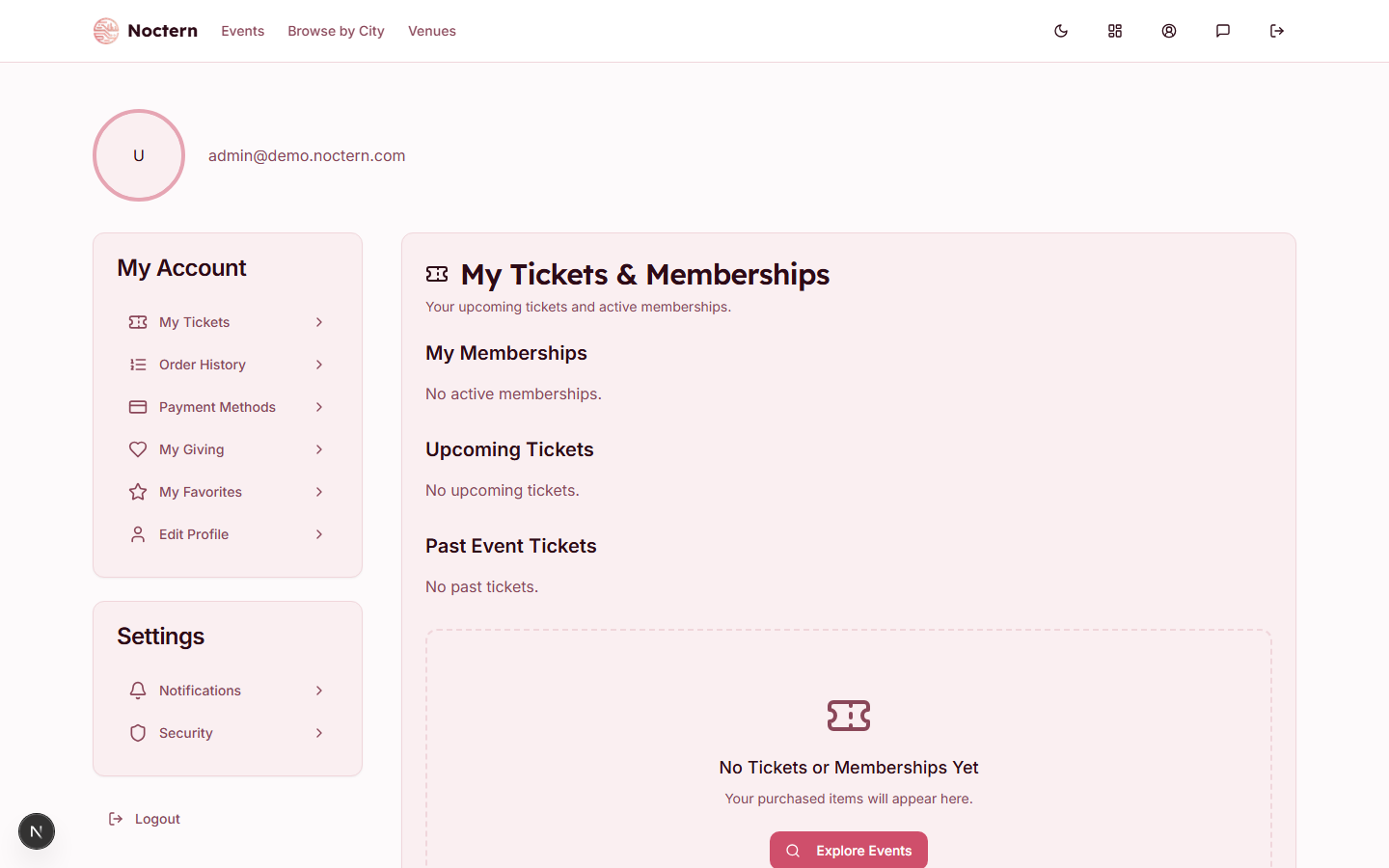
Sign in to your Noctern account to access your profile at Profile. It opens on My Tickets; the My Account menu also has Order History, Payment Methods, My Giving, My Favorites and Edit Profile, and the Settings menu has Notifications and Security.
Tickets
The My Tickets page groups your tickets by show, with two tabs:
- Upcoming (the default) — one block per show, soonest first, with the show's date, time and venue and a ticket card for each ticket. A show stays here until it ends, so you can still find your ticket if you arrive late.
- Past — a compact list of shows you've already attended, newest first. Select a show's row to open its tickets, and select it again to close them. The list shows 10 shows at a time; choose Show more for older ones.
If you have more than five shows, a search box appears above the tabs. Type a show or venue name to filter both tabs, or choose Clear search to start over. If you hold a membership, it appears above the tabs under My Memberships — see Becoming a member.
Each ticket displays:
- Event name and date
- Seat or GA tier
- QR code — present this at the door for check-in
- Add to Apple Wallet and Add to Google Wallet — save the ticket to your phone's wallet
- Print ticket and Transfer ticket — print the ticket or send it to another Noctern account
The actions sit at the bottom of each ticket. The wallet badges come first; when both are available they sit side by side, or one above the other on a narrow phone. Print ticket and Transfer ticket are always side by side below them. Transfer ticket only appears on a valid ticket for a show that hasn't happened yet, and a wallet button only appears if that wallet is available on this site.
If you lost your confirmation email, your tickets are always here — show the QR code on your phone or use Print ticket.
Order history
Order History is a record of every purchase: order ID, purchase date, event, number of tickets, status and total. The status is one of:
- Completed — the order went through
- Refunded — the order was refunded; its tickets are no longer valid
- Transferred — tickets that someone transferred to you
The list is for reference only. To open, print or transfer a ticket, go to My Tickets.
If you need your confirmation email again
There is no resend button in your profile. Your tickets are on My Tickets, so you don't need the email to get in. If you do want it sent again — or it went to a mistyped address — contact the venue's box office; staff can resend it.
Updating your profile
Go to Edit Profile to update:
- Profile Picture — click Upload Image (PNG or JPG, up to 700KB)
- Full Name
- Phone Number — optional
- Address, City, State and Zip Code
Click Save Changes. Your Email Address is shown but can't be edited here.
Notifications
Under Notifications, switch each kind of message on or off and click Save Preferences:
- Promotional Emails — new events and special offers
- Event Reminders — reminders for your upcoming events
- Security Alerts — important account activity, like password changes
Password and two-factor sign-in
Under Security, change your password by entering your current password and the new one twice. On the same page, Two-factor authentication lets you protect your account with a code from an authenticator app — click Set up authenticator app and follow the steps. The entry in your authenticator app is named Noctern on the live site; on the test and demo sites it reads Noctern (dev) or Noctern (demo), so you can tell them apart. To rename an entry you already have, open it in Google Authenticator (tap the pencil icon) or Microsoft Authenticator (open the account, then Edit account or the settings gear) and change the name.
Payment methods
Saved cards appear under Payment Methods. Click Add a card, enter the details and click Save card. To remove a card, click the trash icon beside it. Saved cards speed up future checkouts and can be used for recurring gifts.
Removing a card here does not cancel a recurring donation. Manage recurring gifts — including the card each one uses — under My Giving. See Managing your recurring donation.
Favorites
My Favorites lists the venues you have marked as favorites, so you can get back to them quickly.
If you bought tickets as a guest with the same email address as your Noctern account, the order is added to your account and appears here.