
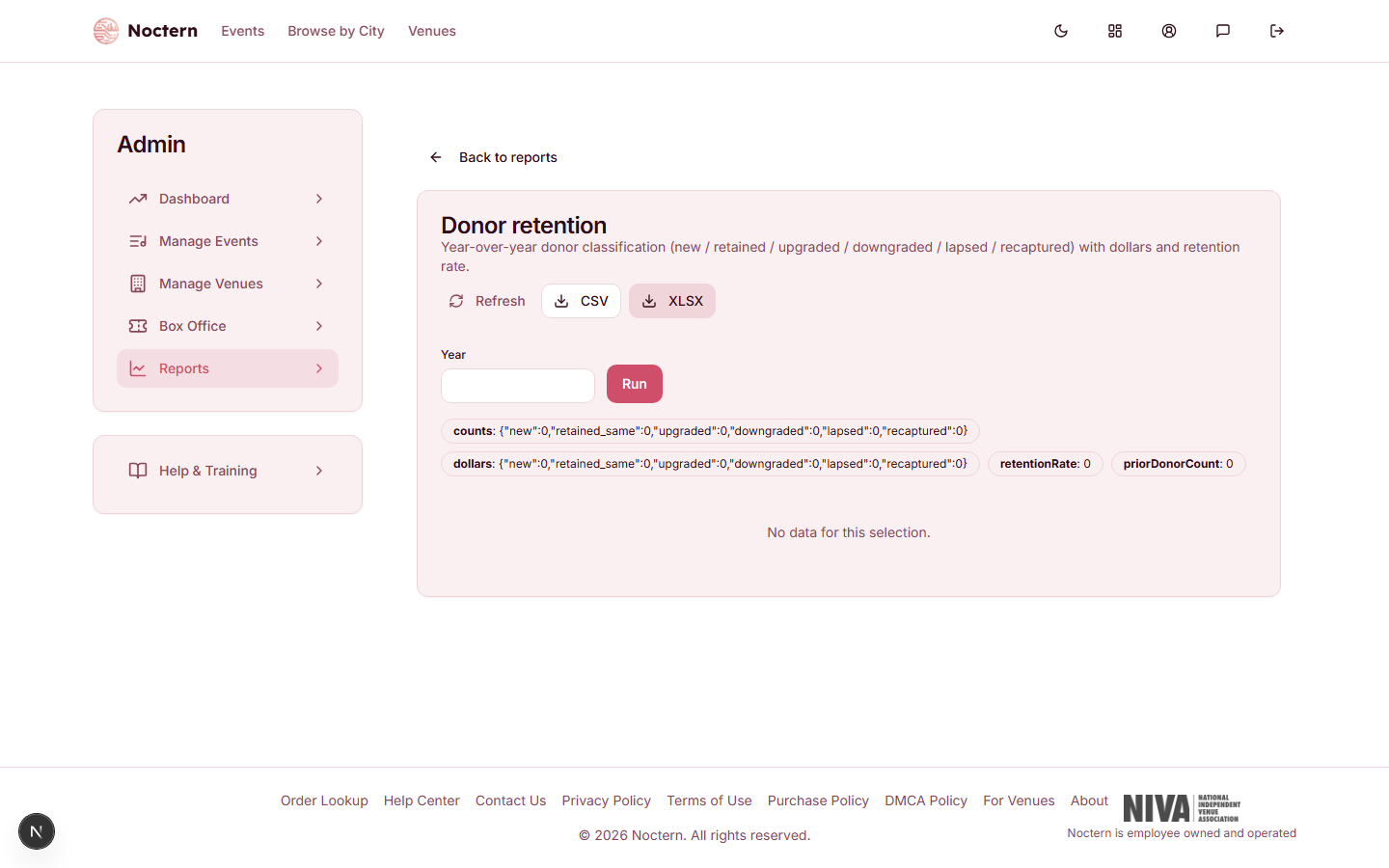
The Donor retention report compares each donor's giving in one calendar year with the year before, and sorts them into six groups that show whether your donor base is growing, holding or shrinking.
Open the Reports hub (Reports in the admin sidebar) and click Donor retention under Development.
Picking the year
Type a year in Year and click Run. Leave it blank for the current year. The report always compares that year with the one before — 2026 against 2025, for example. Years are calendar years in your venue's time zone.
The six classifications
| Classification | Who is in it |
|---|---|
| New | Gave this year and has never given in any earlier year |
| Retained (same level) | Gave in both years, and this year's total is within 1% of last year's |
| Upgraded | Gave in both years, and gave more this year |
| Downgraded | Gave in both years, and gave less this year |
| Lapsed | Gave last year, has not given this year |
| Recaptured | Gave this year, did not give last year, but had given in an earlier year |
"This year" means the year you picked. Any change of 1% or more in a donor's total counts as an upgrade or a downgrade.
Summary tiles
- Donors last year — how many donors gave in the earlier year.
- Retention rate — the share of them who gave again this year, whether the same, more or less.
- Donors — a count for each of the six classifications.
- Dollars — a total for each. For Lapsed this is what those donors gave last year: the giving you lost.
Retention rates vary a great deal between organisations. Watch your own rate from year to year rather than aiming at a fixed number.
The donor list
Under the tiles, one table lists every donor in the comparison:
| Column | What it shows |
|---|---|
| Patron / Email | The donor |
| Classification | One of the six above |
| The year you picked | Their total that year |
| The year before | Their total the year before |
| Delta | The difference between the two |
The list is sorted by this year's giving, largest first. The tiles are not clickable and the list cannot be filtered on screen — to work with one group, download it and filter the Classification column in your spreadsheet.
CSV and XLSX download the full list.
What counts
- Completed gifts only.
- Gifts imported from a previous system count toward their year, so a donor with imported history is not mislabelled as New.
- The data is rebuilt once a night. A gift recorded today appears tomorrow; Refresh does not pull it in.
Using it for outreach
- Lapsed is the most urgent group: donors who gave last year and have not yet given this year. Mid-year, a personal note or a targeted appeal to this list is usually worth the effort.
- Upgraded is a stewardship list — these donors increased their commitment and deserve a thank-you.
- Recaptured donors came back after a gap; find out what brought them back.
To email lapsed donors, build an audience in the campaign composer's Advanced tab with the rule Lapsed donors (gave before, not this year). That rule also includes donors who lapsed before last year, so it is a wider group than this report's Lapsed.