
A scheduled report runs on its own — daily, weekly or monthly — and emails the result as an attachment, so your team gets the numbers without signing in.
Open the Reports hub (Reports in the admin sidebar) and click Scheduled reports under Automation & marketing.
Any venue admin can create, pause, send and delete schedules. Box-office staff cannot.
The list
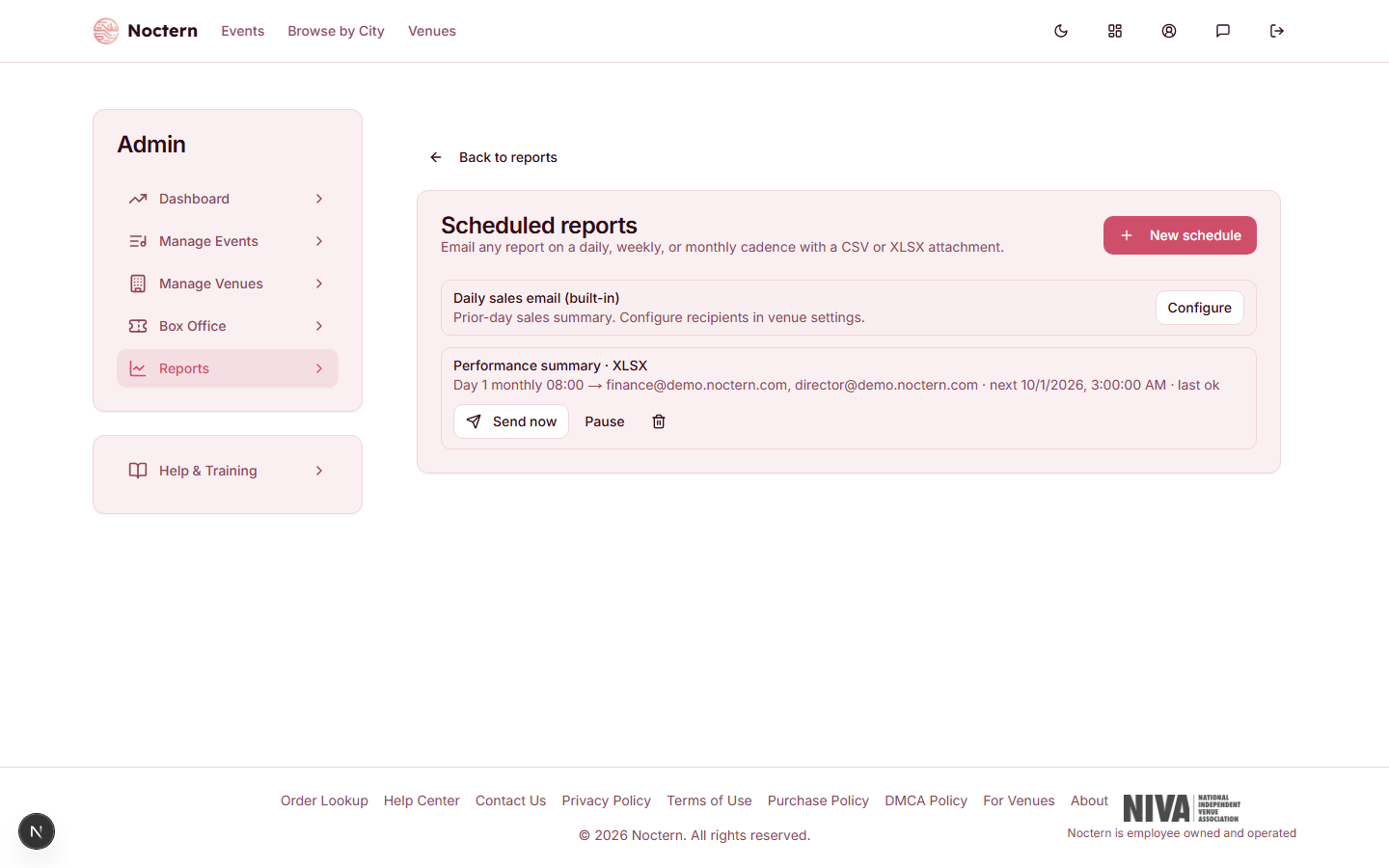
Each schedule takes two lines:
- the report and file format — for example "Ticket ledger · XLSX" — with a paused tag when it is paused
- when it runs, every address it goes to, when it will next run, and whether the last run was ok or failed
Run times are shown on a 24-hour clock: "Daily 07:00", "Monday 07:00", "Day 1 monthly 07:00".
The first row, Daily sales email (built-in), is not a schedule you create here. Click Configure to open your venue's details, then set the addresses in the Daily Sales Report card — see the daily sales email.
Creating a schedule
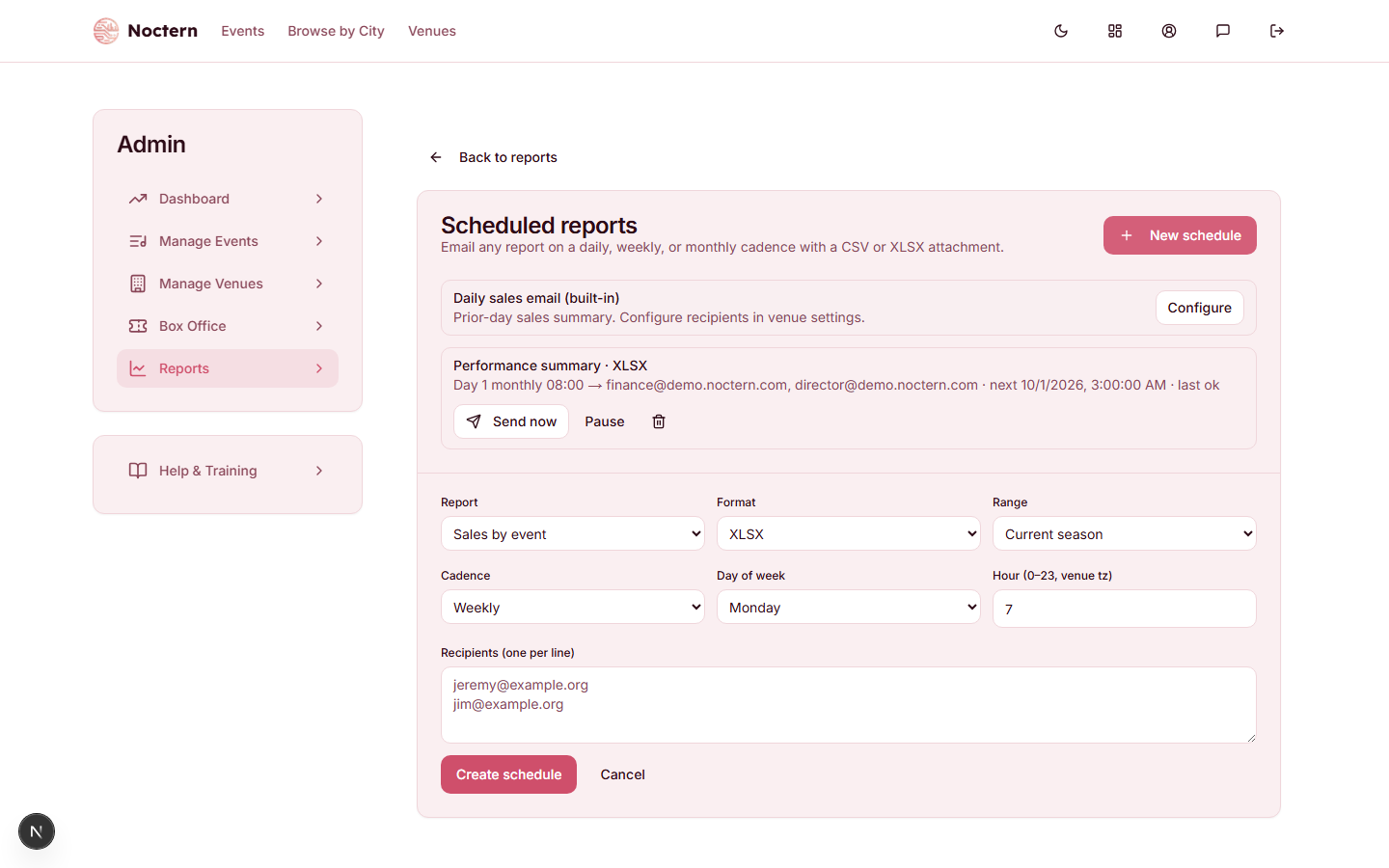
Click New schedule. A form opens at the bottom of the card.
Pick the Report.
Pick the Format: XLSX or CSV.
Pick the Range the report should cover each time it runs: Current season, Yesterday, Today, Last 7 days, Month to date or Prior month.
Pick the Cadence: Daily, Weekly (then a Day of week) or Monthly (then a Day of month, 1 to 28).
Set the Hour — a number from 0 to 23, in your venue's time zone. 7 is seven in the morning; 18 is six in the evening.
Enter up to 10 addresses in Recipients, one per line.
Click Create schedule.
Reports go out some time during the hour you chose, not on the dot.
Which reports can be scheduled
| Report | Notes |
|---|---|
| Sales by event | |
| Performance summary | |
| Patron lifecycle | |
| Cross attendance | The overlap table only, by category |
| Donor retention | Always the current year against last year |
| Development gifts | Completed gifts in the range — date, patron, amount, fund, method |
| LYBUNT / SYBUNT | Sends the SYBUNT list — everyone who gave in an earlier year but not this year. Range is ignored |
| Pledge aging | Overdue pledge installments as of the day it runs. Range is ignored |
| Payout reconciliation | Always the month it is sent in, so send it late in the month (day 28). Range is ignored |
| Ticket ledger | Yesterday, sent each morning, is the usual choice for a bookkeeper |
Year-over-year, Repeat attendance, the Gifts report, Daily cash, Stripe payouts (Connect) and the marketing reports cannot be scheduled.
Changing, pausing and deleting
- There is no edit. To change a schedule's report, range, time or recipients, delete it and create it again.
- Pause stops a schedule without losing it. Resume starts it again.
- The trash icon deletes a schedule straight away — there is no "are you sure?" step.
Sending one now
Click Send now to run a schedule immediately and email it to its recipients. Each schedule can be sent this way 3 times an hour.
What the email looks like
The subject is your venue's name, the report's name and the date. The report is attached in the format you chose.
If a report comes out larger than 10 MB, it is not attached. The email says so and gives an Open it in Noctern link to your Reports hub, where you can run it yourself. To get an attachment again, recreate the schedule with a shorter Range.
If a run fails, the schedule shows last failed and waits for its next turn — it does not retry.
Recipients are not checked against marketing consent — they are assumed to be your own staff. Do not add patron addresses.
A scheduled report is emailed to whoever is on its list, whatever their permissions in Noctern. Donor reports — Donor retention, Development gifts, LYBUNT / SYBUNT, Pledge aging — include donor names and amounts, so check the recipients before you create one.
Pick a range that moves with the calendar — Yesterday, Prior month, Current season — so the schedule stays useful without being touched.