
The Development reports page totals your giving for any dates, ranks your donors, and lists the donors who have stopped giving.
Getting there
Open your venue from Manage Venues.
In the Money card, click Fundraising. (The link is unavailable if nonprofit features are not turned on for your venue.)
Click View reports.
This page needs the Exports permission — to view it, not only to download from it. A venue admin without Exports sees the page with empty tables and $0 totals. If the numbers look empty and you know there are gifts, ask the venue owner to check your permissions on the Team & permissions page.
Dates
From and To open on the current calendar year. Change them and click Run — nothing updates until you do. They apply to the Gifts and Donors tabs.
Every tab has its own CSV and XLSX buttons. Each download is written to the venue's activity log.
Gifts tab
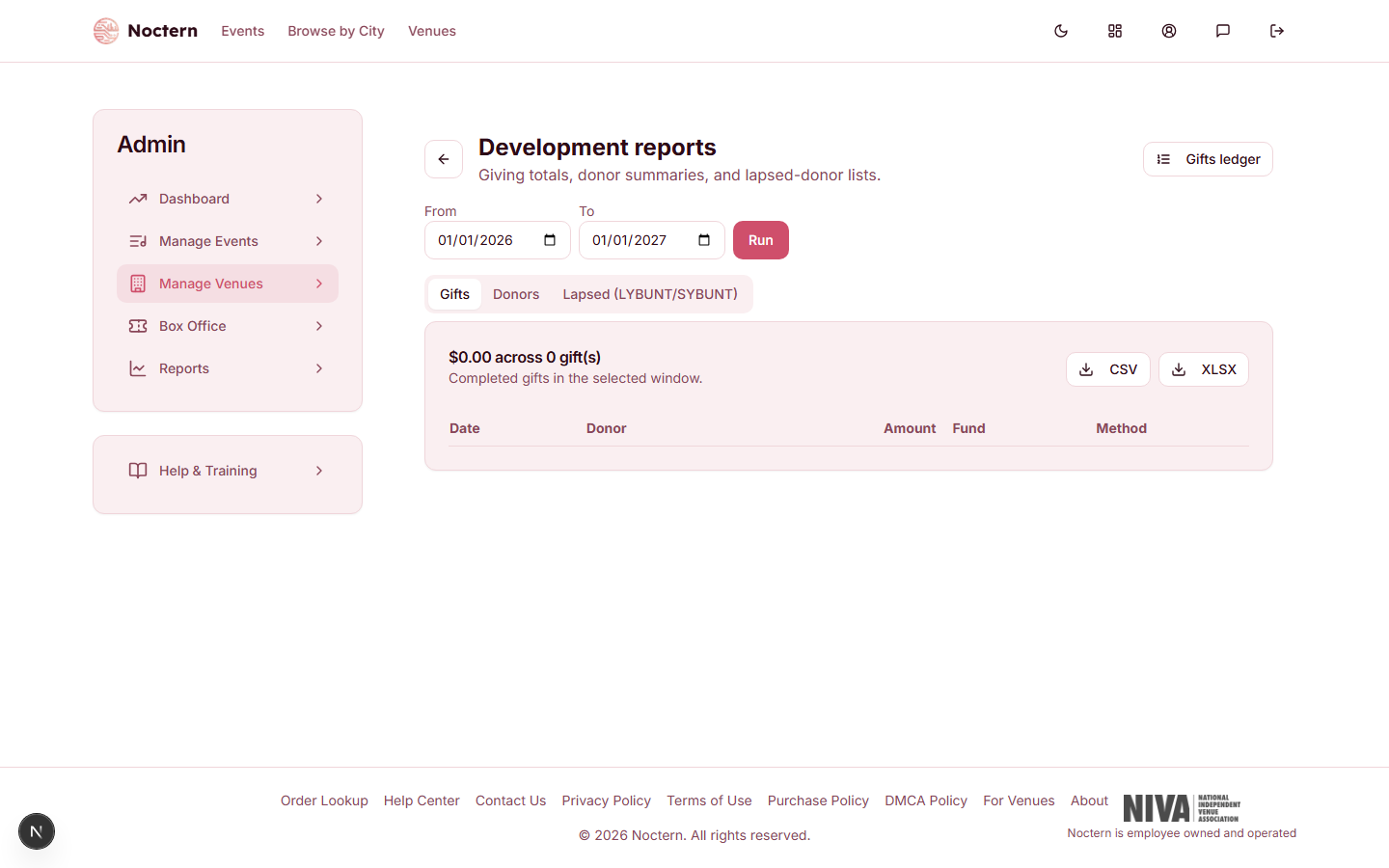
The heading gives the total and the count — for example "$12,450.00 across 86 gift(s)" — for completed gifts in the dates you chose. Voided and pending gifts are left out.
The table lists each gift: Date, Donor, Amount, Fund and Method.
Donors tab
One row per donor for the same dates, largest total first: Patron, Total, Gifts (how many) and Last gift. Use it to find your top donors for a period.
Lapsed (LYBUNT/SYBUNT) tab
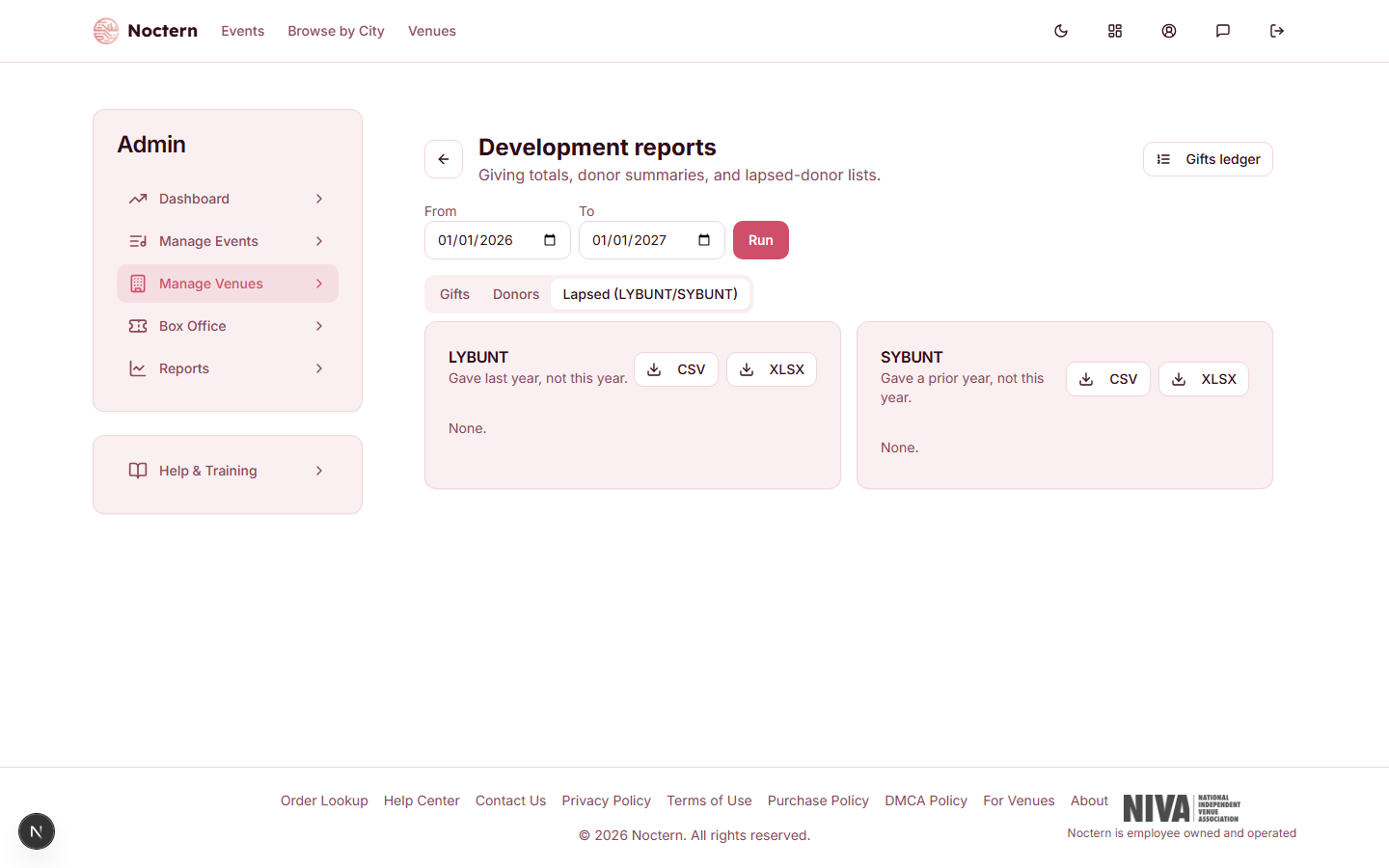
Two lists, side by side:
| List | Who is on it |
|---|---|
| LYBUNT | "Last Year But Unfortunately Not This year" — gave last calendar year, not this year |
| SYBUNT | "Some Year But Unfortunately Not This year" — gave in any earlier year, not this year |
Each donor is shown with the year of their last gift and their lifetime giving.
Two things to know:
- The dates above do not apply here. These lists always compare the current calendar year, in your venue's time zone, against all completed gifts.
- Everyone on LYBUNT is also on SYBUNT. LYBUNT is the urgent part of the list — donors who were active last year. Take them out of SYBUNT if you plan to send the two groups different messages.
Download either list with its own CSV or XLSX button.
Pledge aging is on a different page
Overdue pledge installments are not on this page. From Fundraising, open Pledges and then its Reports page. The Aging tab there groups overdue installments by how late they are, and Open pledges lists each pledge with its total, paid amount, balance and next due date. See Pledges.
For a full list of every gift
Gifts ledger, at the top right of this page, opens the working list of gifts where they are edited and voided.
For a report of every gift by source — including gifts imported from a previous system, kept in their own total — use the Gifts report on the Reports hub. See The Gifts report.
To win lapsed donors back, build an audience in the campaign composer's Advanced tab with the rule Lapsed donors (gave before, not this year) — the same idea as the SYBUNT list.