
Every sale starts with a buyer — an existing patron, a brand-new patron, or someone you sell to as a guest without creating a record.
The Buyer card on the sale screen has three buttons across the top — Find patron, New patron, and Guest — and shows whichever form you've picked below them.
Finding an existing patron
With Find patron selected, type into Search name or email….
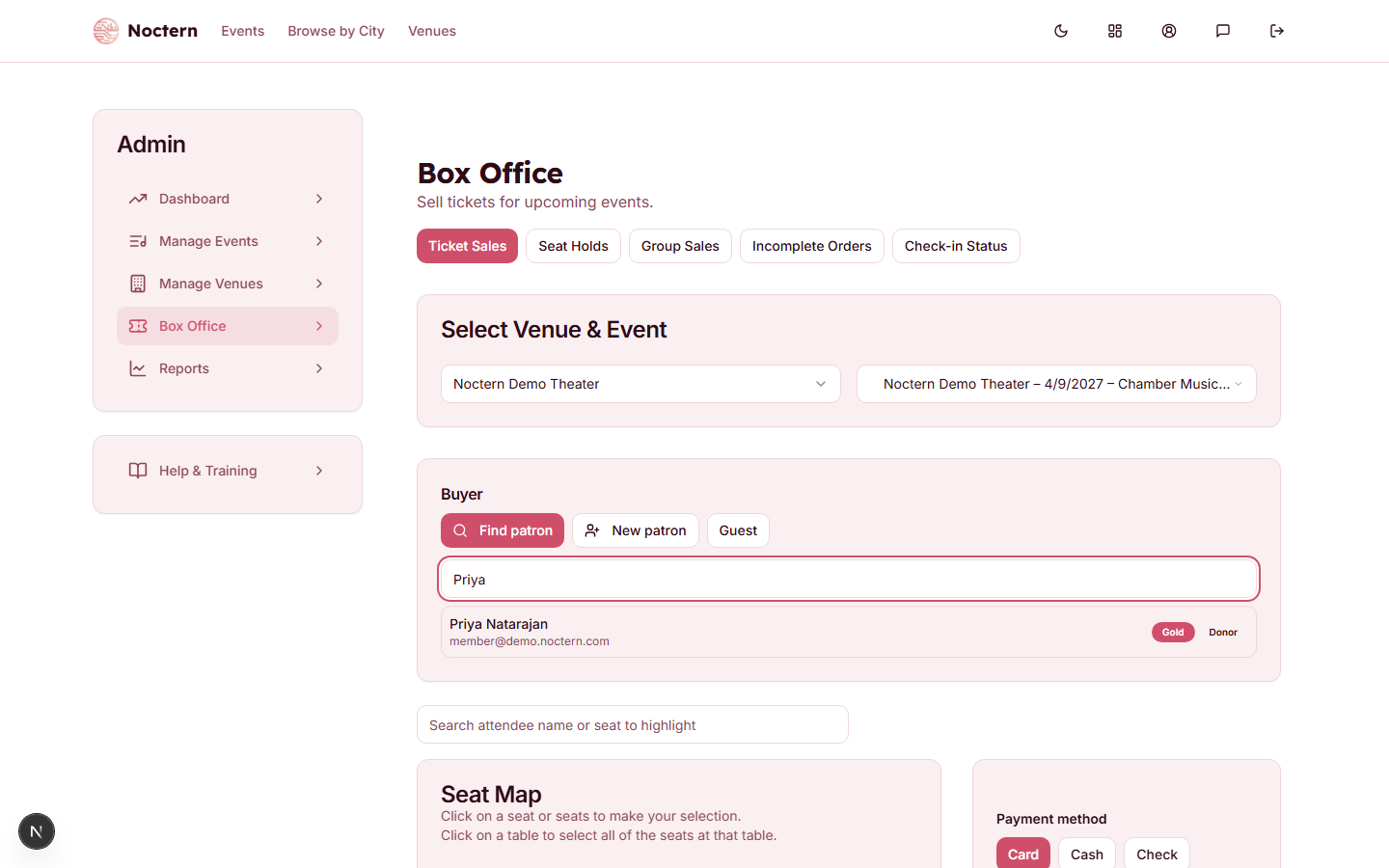 1Search name or email2Member + Donor badges
Patron panel showing a search result with Member and Donor badges The search matches the start of a patron's first name, last name, or email (not a mid-word match). It also finds a name that's just one typo off — a swapped, missing, extra, or wrong letter, like "Jon Smtih" for "John Smith." Email matching is still exact start-of-address only. Up to 20 results are shown.
Click a result to select them as the buyer for this sale.
Search starts once you've typed two characters. If nothing matches you'll see No patrons match - check the spelling or create a new patron.
Reading the badges
- A result row shows the patron's membership level (for example, Gold) if they have an active membership, and a Donor badge if they have any lifetime giving on record.
- A Close match badge means the row was found by the typo-tolerant search, not an exact or prefix match — double-check the name before selecting it.
- Once you select a patron, the buyer chip shows simpler badges: Member, Donor, Guest, or No email. The buyer chip doesn't show the membership level name or an expiry date — check the search result row (or the patron's own record, if you have access) for those details.
A membership counts as active only while its expiresAt date hasn't passed. A membership with no expiry date is treated as perpetual.
No email means the patron has no email on file — a confirmation with their tickets will not be sent automatically when the sale completes.
Creating a new patron
Click New patron.
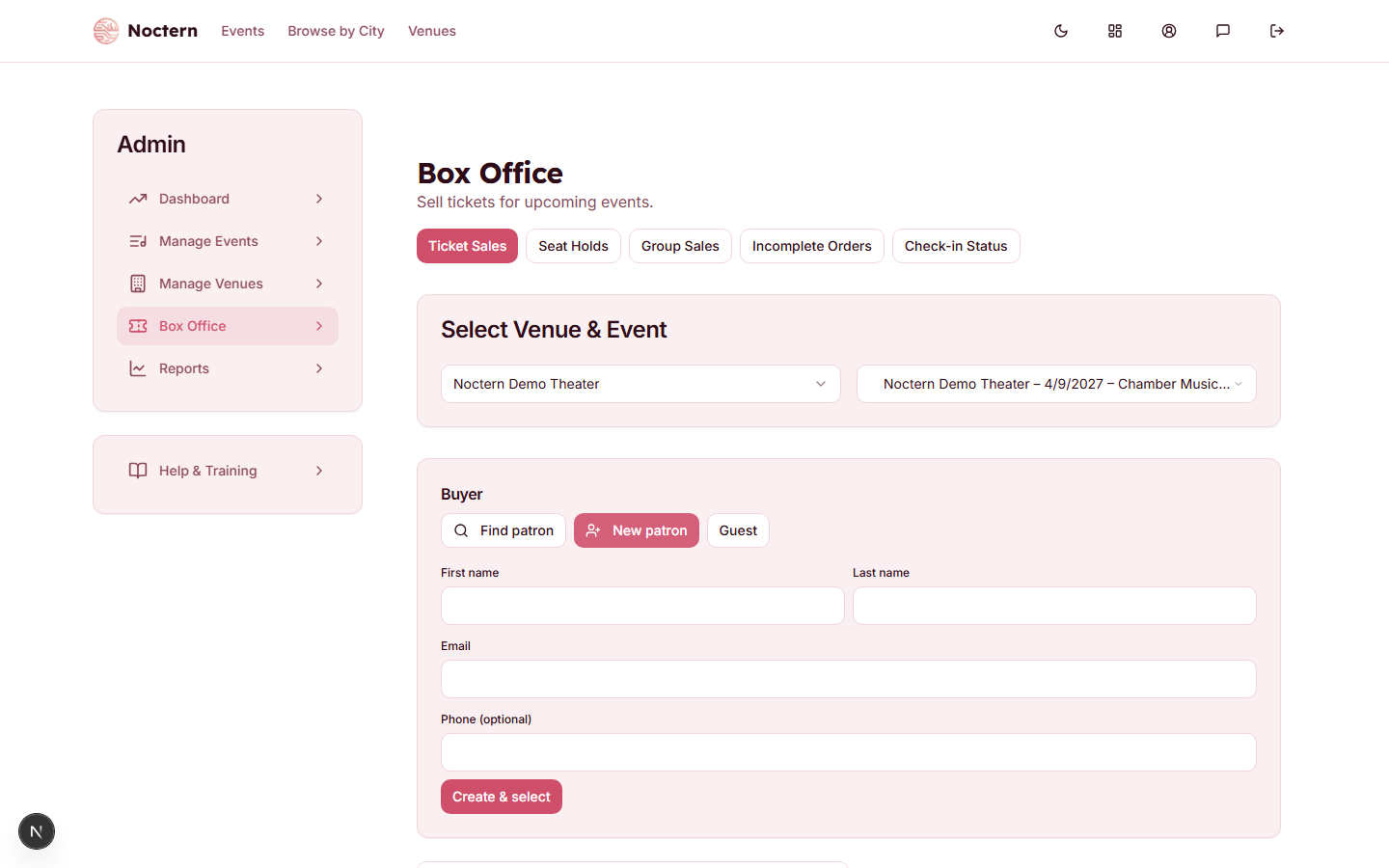 1Find patron / New patron / Guest2Create & select
New patron inline create form Fill in First name, Last name, Email, and Phone (optional).
Click Create & select. You need at least a name or an email — leaving all three blank shows Enter a name or email.
If the email you type already belongs to a patron at this venue, Noctern selects that existing record instead of making a duplicate and tells you Matched existing patron. Nothing is lost — check the buyer chip to see who you got.
Selling as a guest
If the buyer doesn't need a saved patron record — a one-off attendee, for example — click Guest instead. Enter a name (at least one of First name / Last name; leaving both blank shows Enter the guest name) and an email if they want one — the field is labelled Email (optional). Click Sell as guest. No patron record is created from this — Noctern still creates a lightweight guest account behind the scenes to hold the order, but it won't show up in the venue's patron list as a searchable contact the way a "New patron" would.
Your selected buyer stays selected if you switch to a different event in the same session — you don't need to look them up again.
What box office staff can and can't do with patron records
Box Office can search for and create patrons, but cannot edit an existing patron's details (name, email, phone, tags) — that requires Venue Admin or higher. If a patron's info is wrong, flag it to a venue admin rather than trying to fix it from the box office.