
A compound audience is a set of rules: patrons to include, and patrons to exclude even if they were included. You build one in two places, and the builder is the same in both:
- In a campaign — the Advanced tab of the composer's Audience card. The rules belong to that one campaign.
- On the Audiences page — where you name the audience and save it, so any campaign or automation can use it.
Where to find saved audiences
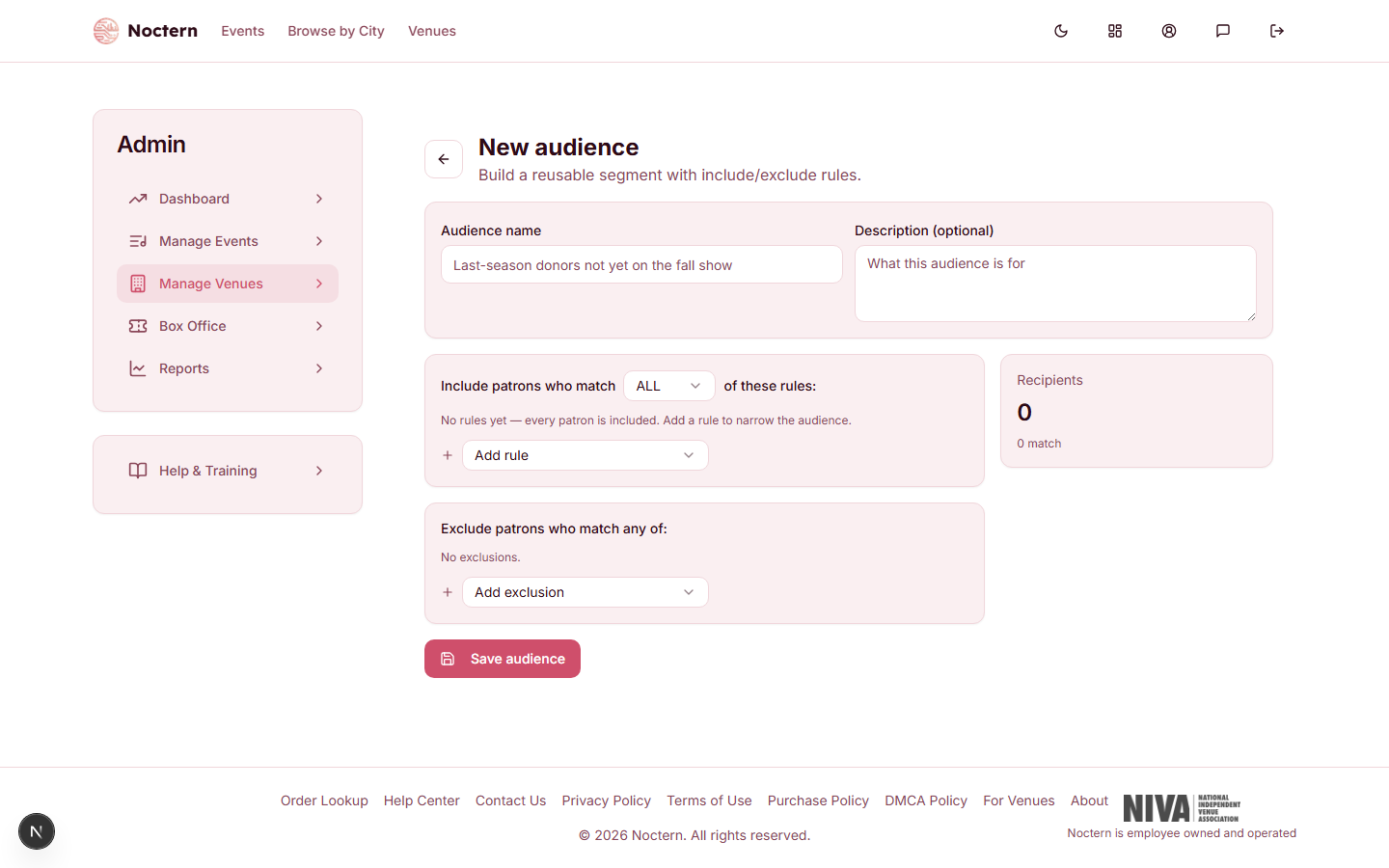
Go to Admin → Venues → [your venue], click Marketing in the Money group, then click Audiences. (The Audiences button is also at the top of the Email campaigns page.) Click New audience to build one.
Building the rules
Pick a rule from the Add rule dropdown. Each rule you add appears as a row with its own options and a trash icon to remove it.
| Rule | Who it matches | Options |
|---|---|---|
| Donors (min lifetime giving) | Patrons whose lifetime giving is above $0 | Optional minimum amount |
| Lapsed donors (gave before, not this year) | Patrons who gave in the past but nothing this calendar year | — |
| Recurring donors | Patrons with an active recurring gift | — |
| Ticket buyers (min spend) | Patrons whose lifetime ticket spend is above $0 | Optional minimum amount |
| Bought between dates | Patrons with a ticket order in a date range | Start and end date |
| Attended a category | Patrons who bought tickets to an event in one event category | The category |
| No purchase since | Patrons whose last order is before a date — and patrons who have never ordered | The date |
| Gave at least N times | Patrons with at least that many gifts | The number |
| Gave to a fund / appeal | Patrons with a gift to a fund, an appeal, or both | Fund, appeal, and an optional date range. Leave both on "Any" to match anyone who gave in the dates |
| Has tag | Patrons who carry one patron tag | The tag, typed exactly |
| Bought a specific event | Patrons who bought tickets to one performance | Pick the event from the dropdown |
| By location | Patrons whose address matches | State, city and the start of a zip code — any of the three |
With no include rules at all, every patron is included; add a rule to narrow the audience. You can add up to 10 include rules and up to 10 exclusions.
Bought between dates and Attended a category also count ticket orders imported from your previous ticketing system, so both work for seasons that predate Noctern.
ALL or ANY
The dropdown in "Include patrons who match … of these rules" sets how the include rules combine:
- ALL — a patron must match every include rule
- ANY — a patron must match at least one include rule
Exclusions
Use Add exclusion in the Exclude patrons who match any of card. A patron who matches any single exclusion is removed, even if they match every include rule.
A common use: include Ticket buyers, exclude Bought a specific event for tonight's show — you reach your buyers without bothering the people already coming.
The live count
The Recipients card beside the rules updates a moment after each change:
- the large number is how many matching patrons can be emailed
- the line under it shows how many patrons match in total, and how many of those are "unreachable (no email or opted out)"
- below that is a sample of up to 10 matching patrons
The count reflects your patron list right now. A campaign works its audience out again at the moment you send, so the final number can differ if patrons buy tickets or unsubscribe in between.
One campaign can reach at most 5,000 recipients. If your audience is larger, narrow the rules or split it into several campaigns. In the composer's Advanced tab the count does not shrink when you tick One email per household; the send itself still sends one email per household.
Saving an audience
On the New audience page, enter an Audience name (required) and an optional Description, build the rules, and click Save audience.
There is no save button inside the campaign composer: rules built in a campaign's Advanced tab stay with that campaign. To reuse an audience, build it on the Audiences page, then choose it in the composer's Saved audience tab.
Open a saved audience to change it and click Save changes. The line under its name tells you how many draft campaigns and automations use it, so you know what an edit will affect. Re-evaluate recounts it on the spot.
Managing saved audiences
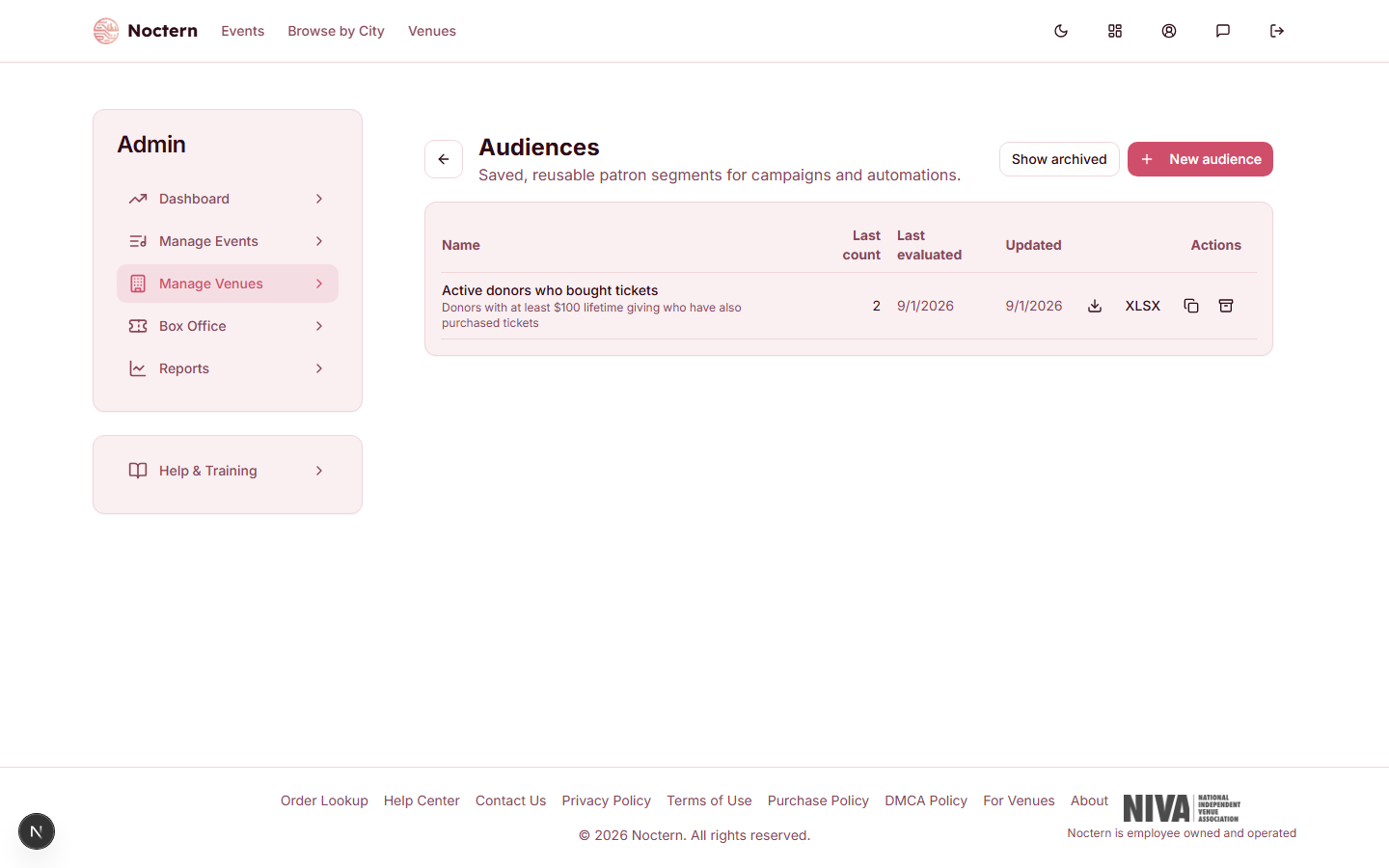
The list shows each audience's Last count (emailable patrons the last time it was counted), Last evaluated and Updated dates. The actions at the end of each row are:
- Export CSV (the download icon) and XLSX — download the matching patrons
- Duplicate — make a copy to adapt
- Archive — hide an audience you no longer need. Click Show archived to see archived audiences, and Restore to bring one back.
What an export contains
An export lists every matching patron, not only the ones who can be emailed, so it also works as a postal or phone list. The columns are patron ID, first and last name, email, phone, city, state, zip, lifetime giving, lifetime ticket spend, last order date, last gift date, tags, household ID, emailable and doNotCall.
Tick Exclude do-not-call from exports at the top of the page before exporting to leave out patrons marked do-not-call. Without it they are still in the file, flagged in the doNotCall column.
Every export is recorded in your venue's activity log with who took it and how many rows.
On the Audiences page click New audience. Add the rule Ticket buyers (min spend), then add the exclusion Donors (min lifetime giving). Watch the count change, name it "Non-donor ticket buyers" and click Save audience. Go back to the list and export it as CSV.