
A pledge is a commitment to give a total amount over time — "$1,200 over four quarters." The pledge itself isn't a gift; each installment is recorded as its own gift, linked back to the pledge.
Before you start
Venue Admin with the Donor data permission (set on the Team page) to see, create, pay, and close pledges. The pledge Reports page needs the Exports permission instead. The venue owner has both; box office staff have neither.
Creating a pledge
Go to AdminVenuesFundraisingPledges and click New pledge.
Search for the donor in Donor (search by last name), or click + Add a new donor and enter their first name, last name (required), and email.
Enter the Total commitment ($) and choose a Fund. The fund starts on your venue's default fund.
Pick a Schedule: One-time, Monthly, Quarterly, Annual, or Custom schedule. For Monthly/Quarterly/Annual, set the # of installments; for One-time or Custom, that field is hidden.
Set the First payment due date, and optionally an Appeal (optional) and Notes (optional). The Appeal field only appears when your venue has at least one active appeal.
Click Create pledge.
Building a custom schedule
Choosing Custom schedule opens a row-by-row installment builder instead of an installment count:
The Custom installments box starts with one row. Click + Add installment for each further payment, entering a date and amount, or click Split evenly to divide the total commitment evenly across the rows you've already added (enter the total first). Use ✕ to remove a row.
Watch the running total — "Scheduled $X / $Y" turns red until the rows add up to the full commitment (within a penny).
Keep the rows in date order, earliest first — the pledge won't save if a later row has an earlier date.
Tracking a pledge
Click a donor's name in the Pledges list to open the pledge.
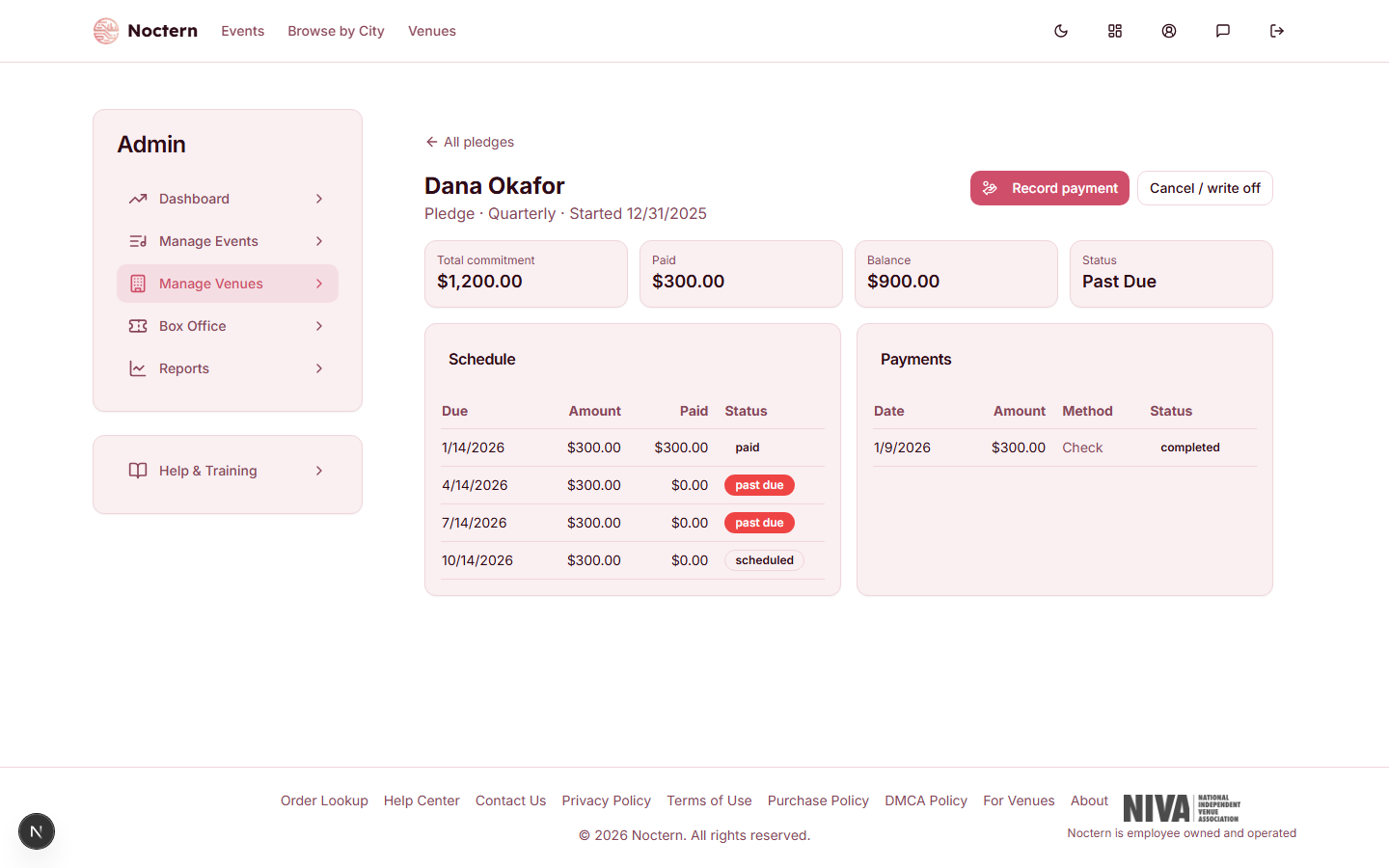
The pledge detail page shows four header stats — Total commitment, Paid, Balance, Status — a Schedule table of each installment's due date, amount, amount paid, and status (scheduled, partial, paid, past due, or waived), and a Payments table of the gifts recorded against the pledge.
When a payment arrives, click Record payment on the pledge — it's one button at the pledge level, not a separate action per installment. It opens the Record a gift dialog with the donor and the pledge's fund filled in. Noctern applies the gift against the schedule and links it back to the pledge. The button disappears once the pledge is fulfilled, canceled, or written off.
If a pledge needs to end early, click Cancel / write off, then choose Write off (the remaining balance is uncollectible) or Cancel pledge (the donor has withdrawn) from the Close this pledge? dialog — or Keep to back out. Payments already recorded stay on the donor's giving history either way.
Pledge reports
AdminVenuesFundraisingPledges → Reports has four tabs — Expected income, Aging, Open pledges, and Fulfillment — and the CSV and XLSX buttons export whichever tab is open. Expected income can be grouped by Month, Quarter, or Year. The Aging tab groups overdue installments by how late they are (1–30, 31–60, 61–90, and 90+ days) with a Total overdue.
This page needs the Exports permission (set on the Team page) — without it the tabs stay empty and the export buttons do nothing.
Watch out
A pledge is a receivable, not revenue — it's never sent to QuickBooks. Pledge payments you record here are offline gifts (check, cash, in-kind) and aren't sent to QuickBooks either, so book that income in your own accounting.
- Open the demo venue's Pledges list and open the pledge that has a past-due installment.
- Check the header stats against the schedule table.
- Start a new pledge with a Custom schedule and try Split evenly across three rows.