
Split tender lets a patron pay with more than one method — for example, $40 cash and $25 card. The order doesn't issue tickets until the balance reaches $0 and you click Complete order.
Before you start
- Box Office and Venue Admin can split tenders.
- Pick the buyer and the seats or quantity on the sale screen first, then choose Card and click Proceed to Card Payment to reach AdminBox OfficeCheckout. That's the only screen with the Add tender panel.
Steps
At checkout, under Add tender, click the first payment method — for example Cash. The Amount box is pre-filled with the whole remaining balance; type the amount the patron is actually handing you instead.
For cash, Change due appears below the box when the amount is more than the balance.
Click Add Cash $xx.xx. The tender appears in the Order column on the left with a Paid badge, and Balance due drops to what's still owed.
The panel resets for the next tender. Click Card, check the amount, then click Charge card $xx.xx.
Enter the card details in the form that appears and click Pay $xx.xx (or Back to change your mind). The card tender's badge goes from Pending to Paid — or Failed if the card is declined.
Once Balance due reads $0.00, click Complete order. The tickets are issued and a confirmation goes to the patron's email, if they have one on file.
For a gift certificate, click Gift cert, enter the code, set the amount to draw down, and click Add Gift certificate $xx.xx. Then add a second tender for the remainder.
To take a tender off again, click the trash-can icon on its row in the Order column. Only a tender that hasn't succeeded yet can be removed; a Paid one, and a card this browser already submitted, have no trash can at all.
Which tenders the panel offers, and who may use each, is in Payment Methods at the Box Office.
Watch out
Card charges must be at least $0.50. If the remaining balance after cash or check is less than $0.50, adjust that amount so the card covers at least $0.50 — the button is disabled below that and says "Card minimum is $0.50 — take the remainder as cash".
If a card is declined, the order stays open — the paid cash tender is held. Try a different card or ask the patron for more cash. If they walk away, click Cancel; you'll be asked to confirm, and any card tenders that were successfully charged are refunded and the seats released.
If you back out of the card form, or reload the page with a card tender half-started, you'll get a Card payment not finished panel offering Retry card or Remove tender. Use those rather than starting a second card charge — that's the double-charge path.
Orders left unfinished
If you charge a card but never click Complete order — the browser closes, the connection drops — the order stays open with the money on it and shows up on AdminBox OfficeIncomplete Orders.
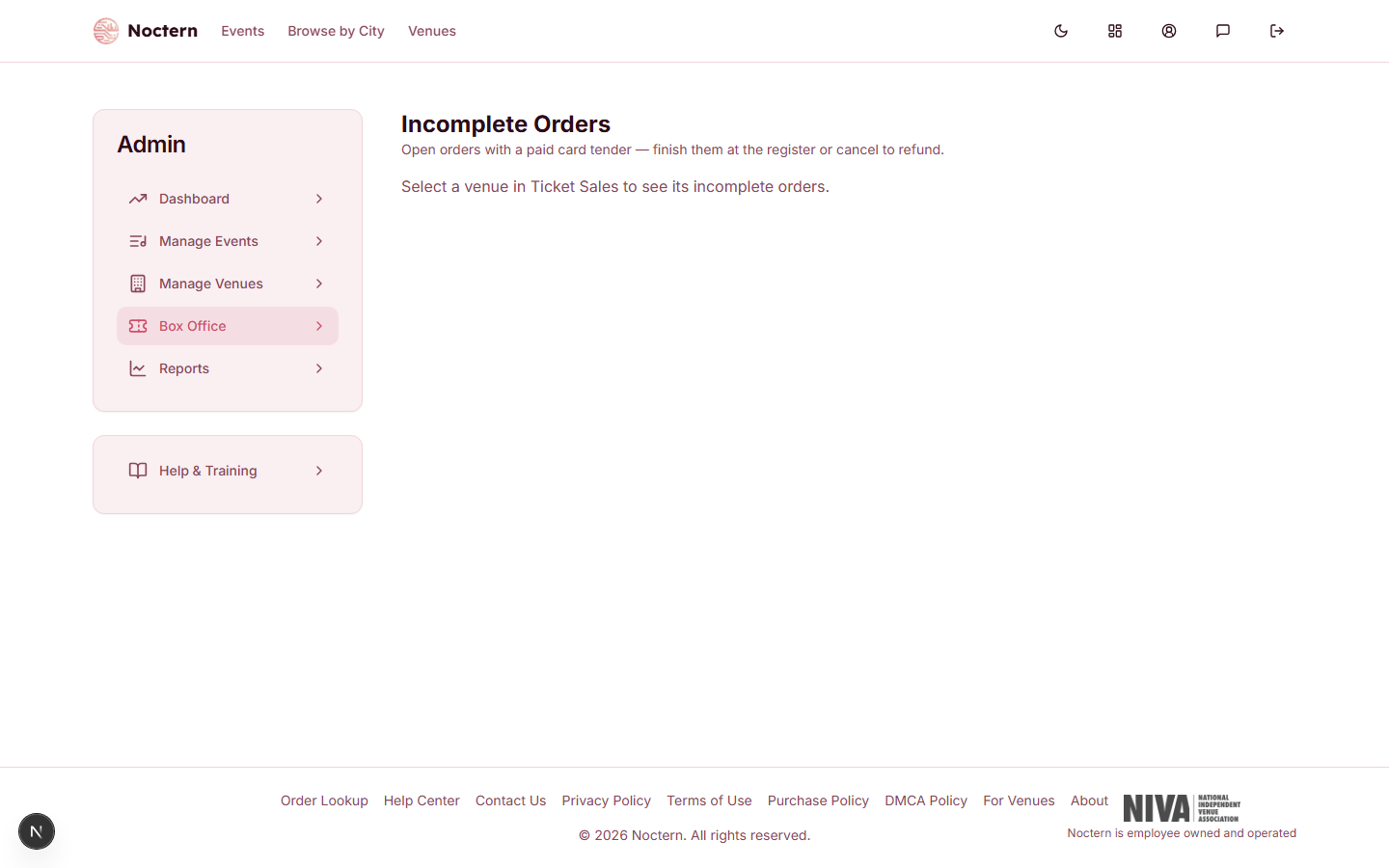
It can't be reopened from there: Cancel & refund it and ring the sale again. See Finishing Up Incomplete Orders, and Completing a Sale and What Happens Next for a seat that sells while you're at checkout.
- In the demo venue, open the box office, select a performance, and add a patron.
- Choose Card, click Proceed to Card Payment, then add a $10 cash tender and a card tender for the remaining balance. Confirm the balance reaches $0.00.
- Click Cancel instead of completing, and verify the seats are released.
- Open Incomplete Orders and confirm the list is empty.