
There are two places you choose how the patron is paying, and they offer different things:
- The sale screen (AdminBox Office) — one Payment method row under the order summary. Use this for a sale paid entirely one way.
- The checkout screen (AdminBox OfficeCheckout) — an Add tender panel you can use more than once. You land here automatically when you choose Card, and it's also where a gift certificate or a split payment is taken.
On the sale screen
Under Payment method you'll see these buttons:
- Card — takes you to the checkout screen to enter the card.
- Cash — recorded straight from this screen.
- Check — recorded straight from this screen; put the check number in the Reference field.
- Other — recorded straight from this screen, with whatever you type in Reference as the label. Available to Box Office staff as well as venue admins on this screen.
- Comp — only when your venue has turned comps on and allows you to issue them. A comp charges nothing at all. See Issuing a Comp at the Box Office.
For anything other than Card and Comp, a single Reference (check #, terminal name…) field appears below the buttons. It's optional, and whatever you type is stored on the order.
Recording a cash, check, or "other" sale
Pick the buyer and the seats or quantity first — the button stays disabled until there's a buyer and at least one ticket.
Choose Cash, Check, or Other and fill in the reference if you want one.
Click Record cash sale (or Record check sale / Record other sale). The button turns red and reads Confirm: record $xx.xx cash — click it again to commit.
A Sale recorded message confirms it and the screen clears for the next order.
There is no amount field for cash on the sale screen, and no Change due helper — it records the order total exactly. If you need to show change due, or the patron is paying part cash and part something else, use Card or go through checkout and add a cash tender there.
Taking a card
Choose Card and click Proceed to Card Payment. Everything you've set up — buyer, seats, pricing categories, promo code, delivery method, donation — comes with you to the checkout screen.
On the checkout screen
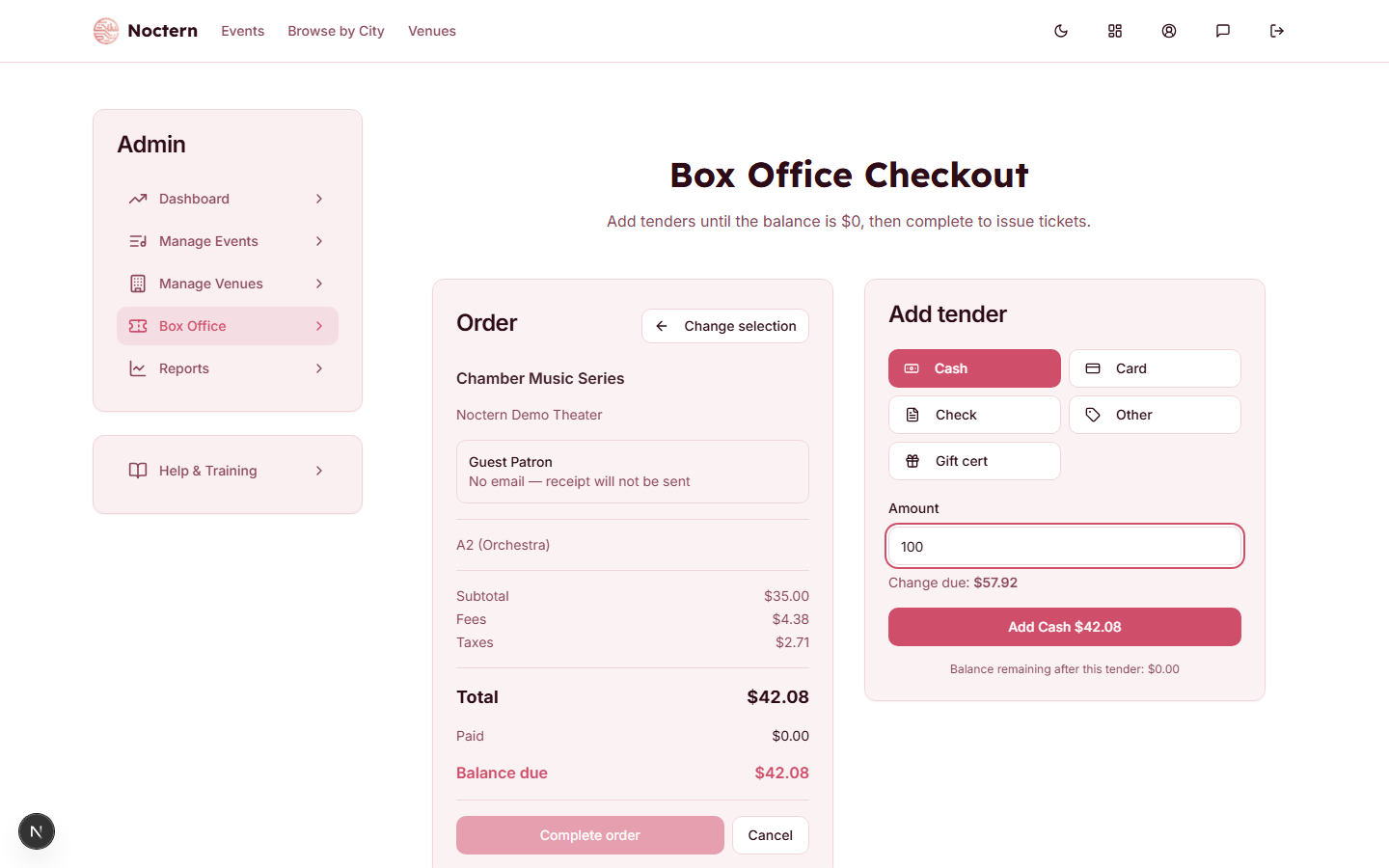
The Add tender panel offers:
-
Cash — type the amount handed to you; Change due appears if it's more than the balance.
-
Card — click Charge card $xx.xx, then enter the card details and click Pay $xx.xx. A card charge must be at least $0.50 — Stripe won't process anything smaller.
-
Check — type the amount and the check number in the Check # field, then Add Check $xx.xx.
-
Other — venue admins only on this screen. The button is simply absent for Box Office staff. A Label / reference is required.
-
Gift cert — only if your venue has gift certificates turned on. Enter the code (format GC-XXXX-XXXX-XXXX) and the balance is drawn down.
-
PayPal / Venmo — only if your venue has PayPal/Venmo in person turned on, and only before any other payment is added. See below.
The Amount box is pre-filled with the whole remaining balance, so for a single-tender sale leave it alone and click the Add … button (or Charge card …). When Balance due reads $0.00, click Complete order — nothing is issued until you do.
Completing a Sale and What Happens Next covers finishing the order and the receipt email. For a patron paying with more than one method, or a card slice under $0.50, see Splitting Payment Across Multiple Tenders.
Taking PayPal or Venmo
The patron pays on their own phone: you show a QR code, they scan it and pay with PayPal or Venmo. They pay the same total as a card sale.
On the checkout screen, click PayPal / Venmo, then Show QR code.
Turn the screen to the patron. They scan the code, can type an email for their tickets (if they leave it blank, the tickets go to their PayPal or Venmo email), and pay.
The screen updates by itself. When PayPal confirms the payment the order completes and the tickets are issued — you do not click Complete order. You can still show or print the tickets as for any sale.
PayPal / Venmo must be the only payment on the order. The button does not appear once you have added cash, a card or anything else, and while a QR code is showing you cannot add another payment. To take a different payment, click Cancel QR code first.
- The code lasts 10 minutes. The countdown is under the code. If it runs out, nothing was charged: click New QR code, or Take another payment. The seats stay held for a few minutes after the code expires, and are released like any unpaid order if nobody finishes it.
- Payment pending with PayPal. Sometimes PayPal holds a payment for review. The order stays open with this notice and the seats stay held; tickets are issued only when PayPal confirms it. You can wait, or click Stop waiting and cancel and take another payment.
- Closed the screen? It does not matter: once the patron has paid, the order completes on its own.
- Paid with PayPal but the order could not complete — cancel to refund. Rarely, a seat is sold to someone else (or general admission sells out) while the patron is paying. The money is taken but no tickets can be issued, and the order shows this notice — here and under Incomplete Orders. Do not take another payment. Click Cancel: the patron's PayPal or Venmo payment is refunded in full and the seats are released. If PayPal takes a while to confirm the refund, the order shows Refund pending with PayPal and cancels itself once PayPal confirms — you do not need to cancel again. If PayPal turns the refund down, the order says so and stays open: click Cancel again to retry.
- PayPal/Venmo payments needing review. If a patron pays after you cancelled the QR code (for example, you stopped waiting on a pending payment and took cash), PayPal still takes the money but no ticket is issued for it. It is listed under Incomplete Orders → PayPal/Venmo payments needing review, and on the order's PayPal / Venmo panel. A venue admin with refund rights clicks Refund PayPal payment to give it back in full; once PayPal confirms, it leaves the list. Box office staff can see the list but cannot refund.
- PayPal's fee on these refunds. When a PayPal or Venmo payment is refunded in full without a sale — a cancelled order or a payment needing review — PayPal keeps its fee. As for an online PayPal refund, that fee comes off your venue's next payout ("PayPal fees carried from …").
- Refunds of a PayPal or Venmo sale go back to the patron's PayPal or Venmo account, the same way as an online PayPal order. Refunds need a venue admin.
- End-of-night totals. The door app's end-of-night report and the daily sales email show PayPal/Venmo as its own line, separate from card and cash.