
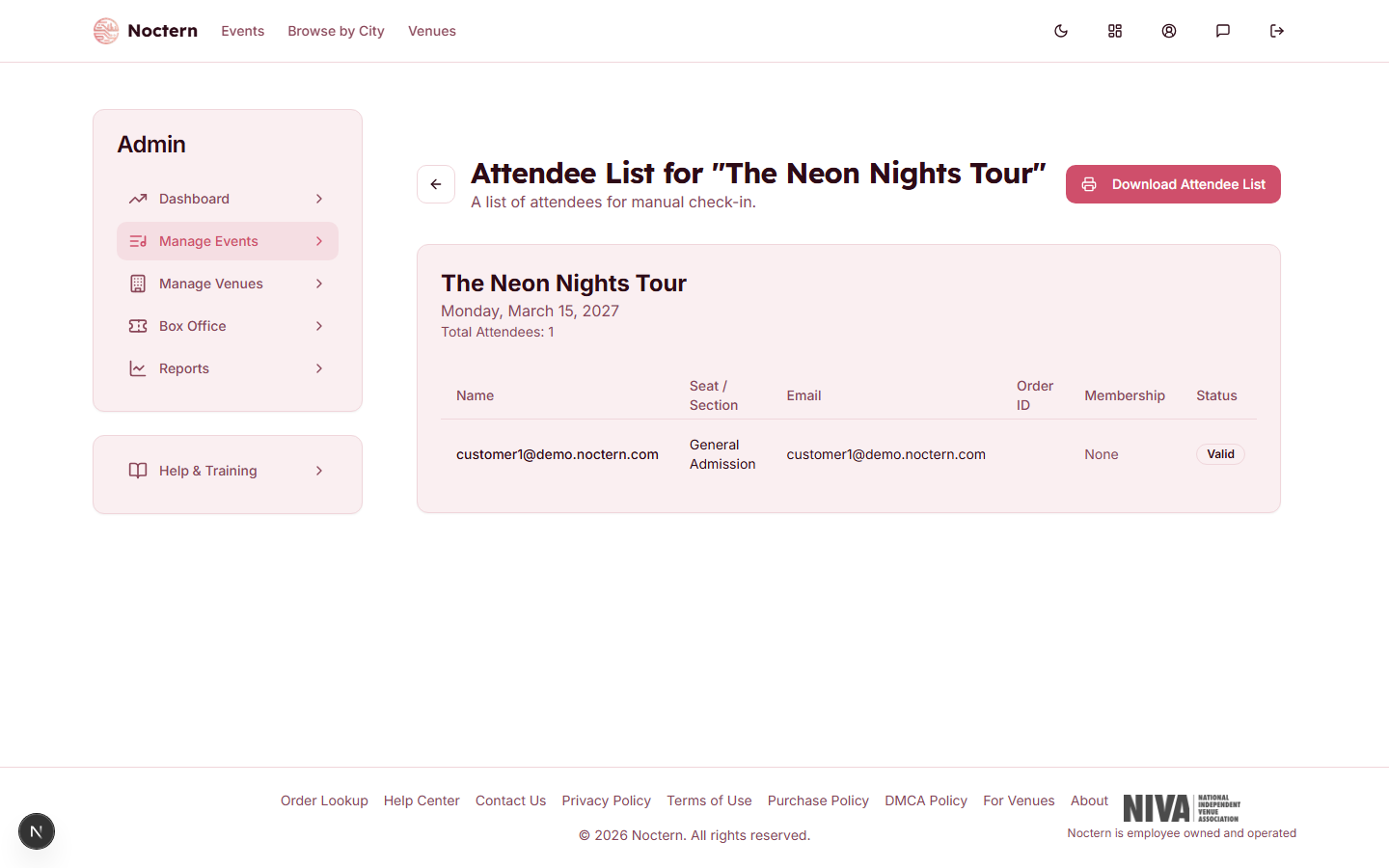
Open a show from AdminEvents and click View attendees in the Day-of group to reach AdminEvents[event]Attendees — the page headed Attendee List for the show's title. It has one row per ticket, sorted by last name, and an action menu on each row.
Who can do what here
Box Office staff can open the list, check people in, resend a confirmation, and print it.
Venue Admin is required for View Details, Transfer Ticket, Invalidate Ticket and Restore Ticket.
Refund Ticket needs the Refunds permission (canRefund) on your account, which you set per person on the venue's Team page. Box-office staff can refund within their own limits — see Refunding a ticket at the box office.
The list
Above the table: the show title, its date, Total Attendees, and — when there were any — Duplicate scans.
Each row shows:
- Name — shown last-name-first; falls back to the email, then "Guest", for imported or guest orders
- Seat / Section — seat label, or the GA tier
- Order ID
- Membership — the patron's membership level, or None
- Status — Valid, Checked In, Exchanged, Refunded or Invalid. A ticket scanned while the door device was offline says so underneath, with the time it synced
The table is not searchable or filterable — it is one sorted list of every ticket for this date. For a long list, use your browser's find (Ctrl+F / ⌘F) on the name.
Checking someone in by hand
Open a row's ⋮ menu and click Check In. Use this when the patron's phone is dead or the QR won't scan. It is only available while the ticket is Valid.
For scanning at the door, use the check-in screen instead — Check in attendees in the same Day-of group.
Printing the guest list
Download Attendee List at the top right downloads a PDF with every attendee's name, seat, order and membership, plus a QR code per ticket. Box-office staff can download it too; it is not gated by the Exports permission.
Print the list before doors in case the internet at the door is unreliable. The PDF is the fallback that lets you work off paper.
Seeing everything about one ticket
View Details opens a dialog with four blocks:
- Event Information — show, date, venue
- Ticket Holder — name and email
- Purchase Information — Order ID, purchase date, total amount, fees, taxes, sales channel, and any Custom Fields the buyer answered at checkout (access needs, for example) as badges
- Ticket Status — status, ticket id, seat, ticket price, when it was checked in, and who it was transferred to
Below that, an Activity timeline of everything that has happened to the order — refunds, transfers, check-ins.
Exchanging one ticket
Exchange moves a ticket to another performance at the same venue. It is always one ticket at a time: open the row's ⋮ menu and click Exchange Ticket.
- Pick the Target performance — any future performance at this venue.
- Pick the seat or GA quantity on that performance. The label counts you down ("1/1 selected").
- If you want no money to move either way, turn on Force equal exchange.
- Type a Reason. It is required — Get quote stays disabled until you fill it in.
- Click Get quote and read it: Paid value, New price, Exchange fee, Fees on difference, and then Total due, Refund to card, Owed back to patron or No payment needed.
- Settle it. For money owed to you, choose How is the difference paid? — New card, Cash, Check or Other (check and other take a reference) — then click Charge $X.XX. For money owed to the patron, click Complete exchange; if it has to be handed back by hand the button says so and the done screen repeats the amount.
The original ticket becomes Exchanged and links to the new order, and a confirmation email with the new ticket goes to the patron.
Force equal exchange zeroes the price difference, so a patron can be moved from a $20 seat to a $60 seat and pay nothing. It is offered to box-office staff as well as venue admins, and nothing else checks it — so set expectations with your staff about when it is allowed.
If an exchange fails after the money has been taken, the dialog says so and stays on screen, naming the automatic Stripe refund — the patron keeps the ticket they had and owes nothing.
Refunding one ticket
Open the row's ⋮ menu and click Refund Ticket. A dialog headed Refund this ticket opens (or Release this ticket for a $0 ticket — a comp, a free checkout, a 100% code — where there is nothing to return and the seat simply goes back on sale).
First choose what comes back. Each line has a tick-box and the amount: Ticket price, Tax, Credit card fee, Box-office surcharge, the platform fee, and — when the order carried one — Donation (gift). The total updates as you tick. The gift line starts unticked on purpose: the venue keeps the donation unless you deliberately return it, and ticking it also removes it from the donor's giving record.
Then choose the Refund method:
- Refund to original payment — the money goes back to the card used
- Convert to donation — no money is returned; the amount is recorded as a gift to a Fund you pick, and acknowledged
- Venue credit (gift certificate) — no money is returned; the amount is credited to the patron's venue credit, spendable online or at the window. Needs a linked patron
A Reason is required for every refund and is stored in the activity log.
For a split-tender order, tick Cash / check was returned to the customer — the cash or check slice has to be handed back by hand and the server will not book it until you confirm you did.
Refunding the whole show at once is a different button. Do not work down the attendee list ticket by ticket — see Cancelling a show and refunding every order.
Transfer, invalidate, restore, resend
- Transfer Ticket — reissue the ticket to a different name and email. Valid tickets only.
- Invalidate Ticket — void a ticket with no refund, for a duplicate or a fraudulent order. The seat is not released for resale.
- Restore Ticket — only appears on an already-invalid ticket, and puts it back.
- Resend Confirmation — email the confirmation and ticket again, to the address on the order.
Open a show with at least one sale, click View Details on a ticket and find its order id and ticket price, then download the attendee list PDF and check the same person appears on it.