
The screenshots in this guide use the light theme, which is the default. If your app is showing dark mode, click the sun icon at the top right to switch back to light.
After you sign in, go to AdminVenues[venue] to reach your venue hub — the central navigation page for everything at your venue.
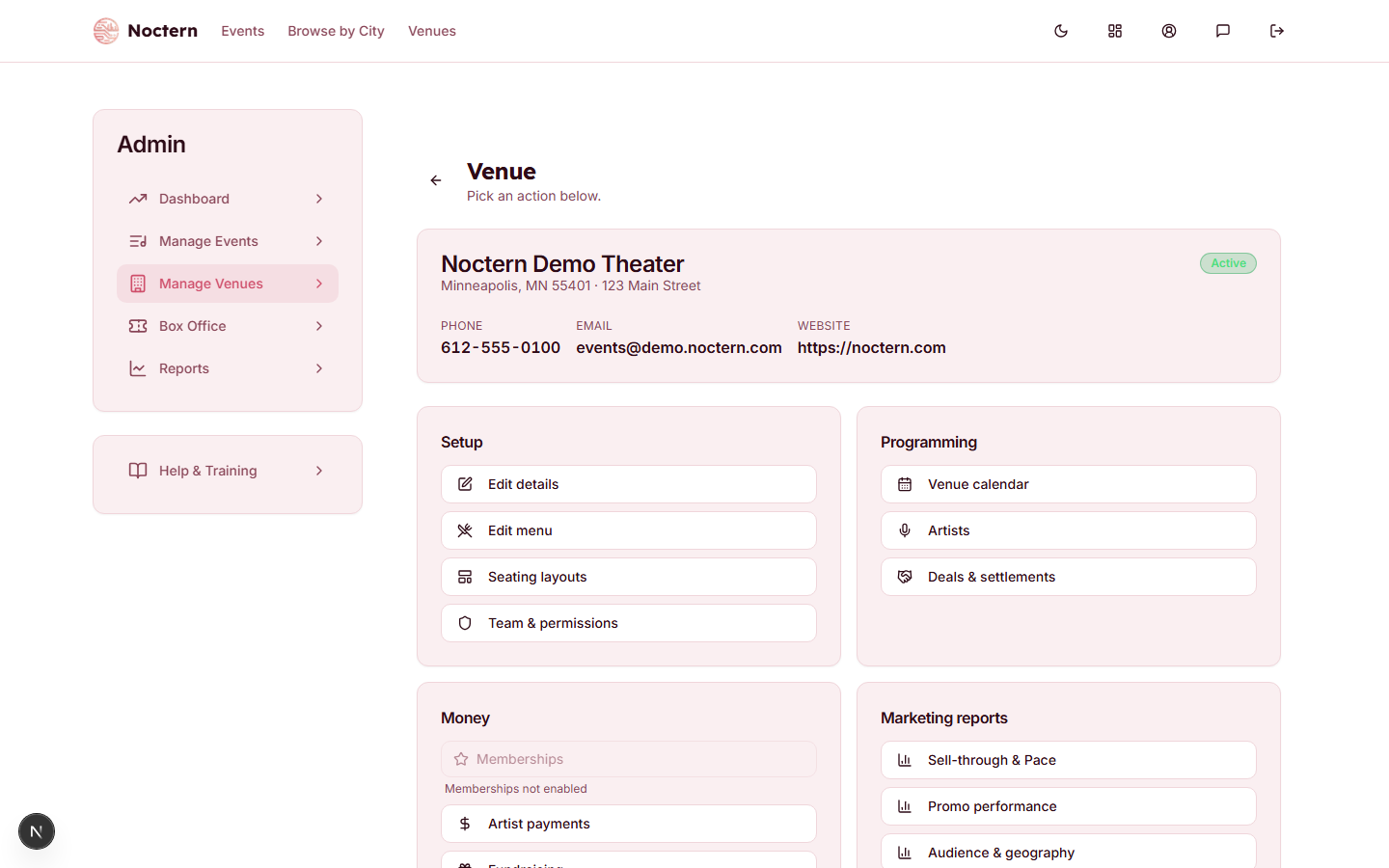
The summary card
At the top, a card shows your venue name, city/state and street address, and a status badge — Active, or Suspended if your venue has been taken off public listings. Any phone number, event email and website you have saved appear as three labelled figures underneath. All of it comes from the Venue Details card on the Edit page.
Five rows of links
Below the summary card the hub lays out five cards. Everything your venue can do is reachable from one of them.
Setup — the building blocks of your venue:
| Link | What it opens |
|---|---|
| Edit details | The venue settings page — profile, branding, fees, tax, email, POS, and the rest |
| Edit menu | Reusable menu and merchandise templates you attach to events |
| Seating layouts | The seat-map builder for reserved seating and GA areas |
| Team & permissions | Staff access, the five permission checkboxes, and the two-factor switch |
| Learn progress | Learn tracks for your staff and the trainer view of who has finished what |
Programming — what's on stage:
| Link | What it opens |
|---|---|
| Venue calendar | A month view of your events plus your own custom entries (closures, private hires, holds) |
| Artists | Artist profiles and contacts |
| Deals & settlements | Performance deals, deal sheets, and settlement |
Money — patrons and the money side:
| Link | What it opens |
|---|---|
| Memberships | Your membership program and its levels. Always available; until you create your first level the link reads "Set up your first membership level" underneath |
| Artist payments | Payments to artists, and the figures behind 1099-NEC reporting |
| Fundraising | Funds, appeals, gifts and donors. Dimmed, with "Nonprofit features not enabled" underneath, unless your venue is set up as a nonprofit |
| Gift certificates | Issue, look up and void gift certificates. The link is only on the hub when gift certificates are turned on for your venue |
| Patrons | Your patron records, ticket history and giving records |
| Households | Patrons grouped into households |
| Marketing | Email campaigns, audiences, automations and the marketing dashboard |
| Promo codes | Venue-wide discount and free-ticket codes, applied to every event at your venue (an event's own codes can still be added on top). The count of currently-active codes is shown underneath |
| Activity | The audit log of admin actions at your venue |
Selling & sharing — three settings pages that have no other link anywhere in the admin:
| Link | What it opens |
|---|---|
| Ticket delivery | Delivery methods and their fees, the box office fee, and who may issue a comp |
| Day-of-show upcharge | An automatic price bump on the day of the performance |
| Embed on your website | The snippet that puts your event list on your own site |
Marketing reports — the four marketing report views, each opening with your venue already selected:
- Sell-through & Pace
- Promo performance
- Audience & geography
- Channels & campaigns
Ticket delivery, Day-of-show upcharge and Embed on your website are reachable only from the Selling & sharing card — they are not in the left-hand Admin menu. If you are hunting for the box office fee or the comp setting, that is the route.
Cards that may not be there
- Fundraising is dimmed and unclickable until your venue is set up as a nonprofit.
- Gift certificates is missing entirely until gift certificates are turned on for your venue.
Both are turned on for you — ask Noctern support if you need either.
Where to go next
| I want to… | Go to |
|---|---|
| Create a new event | Manage Events → Create Event in the left-hand Admin menu |
| Edit venue profile, fees or tax | Edit details |
| Add a staff member | Team & permissions |
| Set up a seat map | Seating layouts |
| Charge a fee at the window, or allow comps | Ticket delivery |
| Manage venue-wide promo codes | Promo codes |
| View patron records | Patrons |