
Use Record a gift when you receive a donation by check, cash, or in kind — anything that did not come in through the Noctern online donation page. The gift appears immediately on the patron's Giving tab and rolls up into their lifetime giving total. Recording a gift never charges a card.
Before you start
- Venue Admin with the Donor data permission (set on the Team page). The venue owner always has it; other venue admins need it ticked. Box office staff cannot record gifts.
- Your venue must be a nonprofit. If the Fundraising card on your venue page is greyed out with "Nonprofit features not enabled", ask Noctern support to turn it on.
- You don't have to pick a fund — a gift recorded without one goes to your venue's default fund. To set up more funds, see the Funds & Appeals topic.
Steps
Go to AdminVenuesFundraising and click Record a gift.
The Record a gift dialog opens.
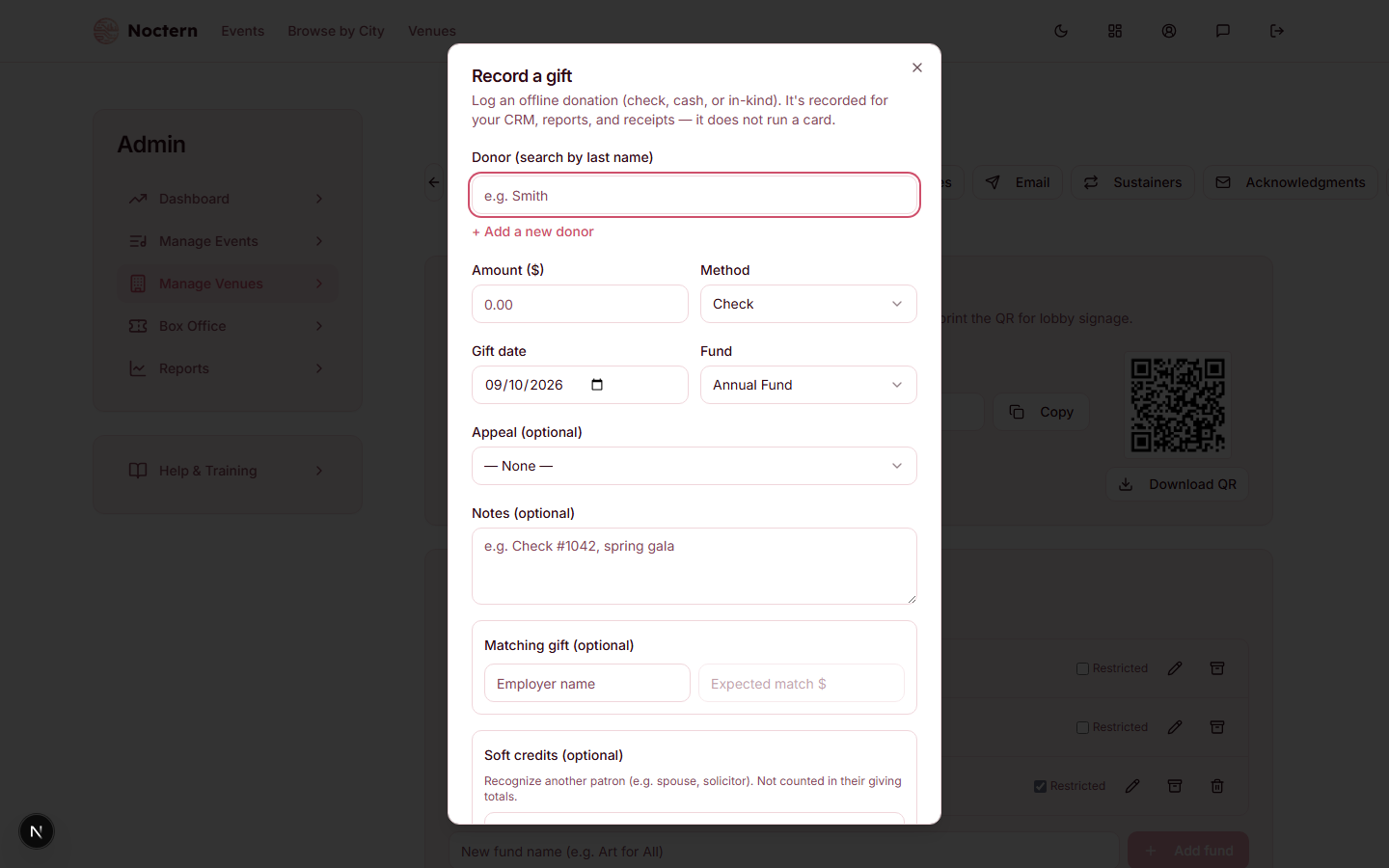 1Donor search2Amount3Payment method4Gift date5Fund
Record Gift dialog with patron, amount, fund, method, and date fields visible In the Donor (search by last name) field, type at least two characters — the start of the patron's last name works best, and the start of their full name or email also matches — then select them from the results. If they don't have a patron record yet, click + Add a new donor and fill in their first name, last name (required), email, phone, and zip inline.
Enter the Amount ($) (required), pick the Method — Check, Cash, In-kind, or Other — and choose the Fund. The fund starts on your venue's default fund.
- There is no separate check-number field. Put the check number in Notes (optional), for example "Check #1042, spring gala".
- For in-kind gifts, enter the fair-market value as the amount.
Set the Gift date — the date the gift was received. It starts on today's date, so change it for a gift that arrived earlier. Using the correct date keeps your receipt numbers and year-end statements in the right tax year.
Optionally, select an Appeal (optional) if you're tracking which campaign prompted the gift. The Appeal field only appears once your venue has at least one active appeal — see the Funds and Appeals topic.
Check Anonymous (hidden from public-facing lists) if the donor has asked not to be named publicly.
Click Record gift. A receipt number is assigned automatically and shown in the "Gift recorded" confirmation message. The gift appears immediately on the patron's Giving tab, and the confirmation offers a View in Gifts ledger → link.
Coming soon: dedicating a gift ("in honor of" / "in memory of") isn't available from this admin dialog yet — it's only settable from the public donate page today. If a donor tells you about a dedication after the fact, note it in the gift's Notes field for now.
Adding soft credits
Soft credits give another patron recognition for helping bring in a gift — a board member who solicited it, a household partner, or a donor-advised fund. Soft credits do not add to the credited patron's lifetime giving total; they appear separately on their record labeled "not counted in totals."
Find the Soft credits (optional) section near the bottom of the dialog — it is always visible, there is nothing to expand.
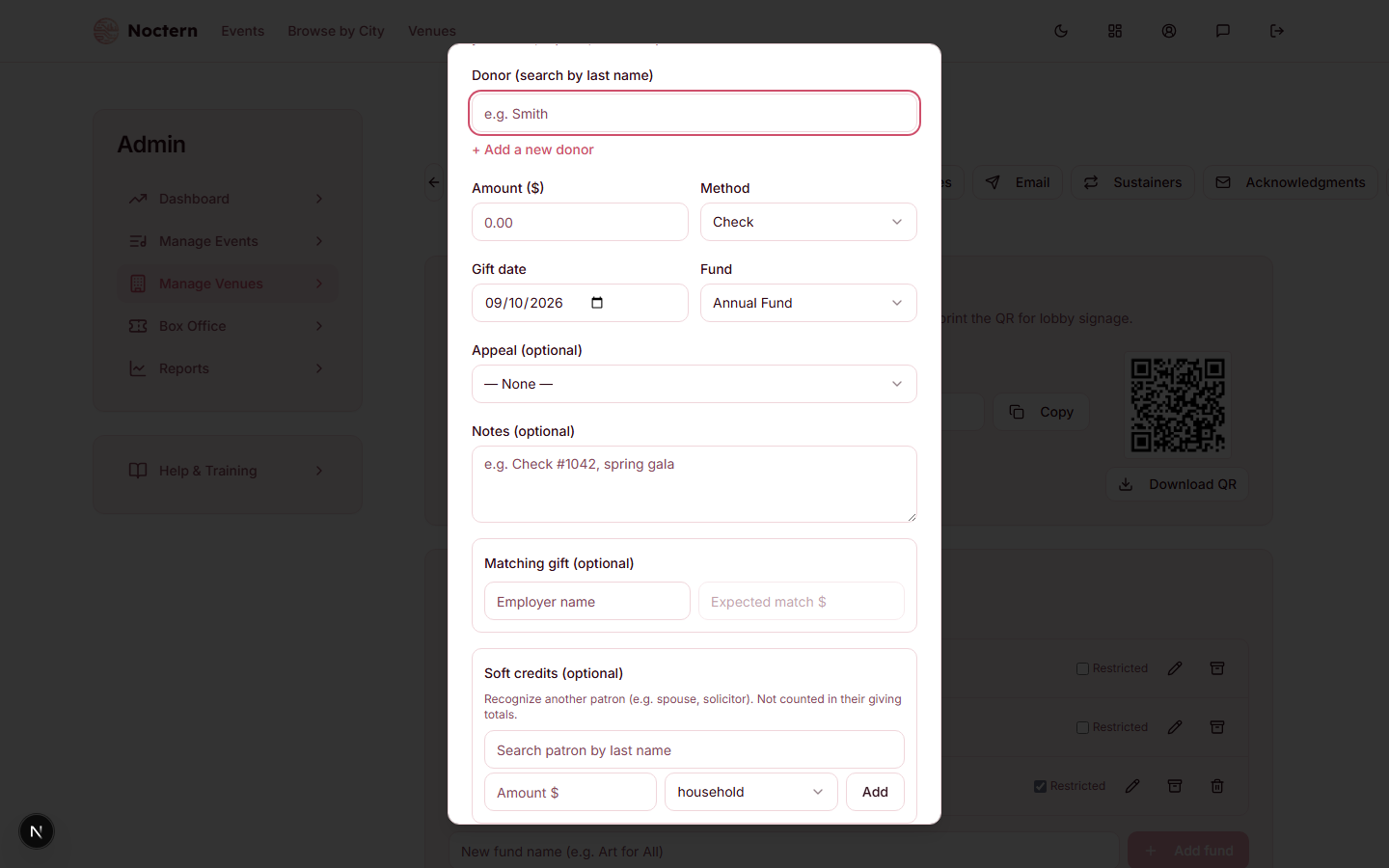 1Soft credits section2Patron to credit3Reason4"Not counted in totals"
Soft credits section of the Record Gift dialog with a patron search field and reason dropdown Search for the patron to credit (the box says "Search patron by last name") and select them. They must already have a patron record at your venue.
Enter the soft-credit amount. It can't be more than the gift amount.
Choose a reason from the dropdown: household, matching, solicitor, daf (donor-advised fund), or other.
Click Add to add the soft credit row. You can add more than one, and Remove a row before you save.
Tips
Recording a gift does not send any acknowledgment email to the donor. Use Fundraising → Acknowledgments to send individual or batch tax receipts after recording.
You can also record a gift from the patron's own detail page: open their record and click Record a gift at the top of the page. The donor is filled in for you.
Watch out
Soft credits are for recognition only — they do not count toward the credited patron's lifetime giving total or appear in year-end statements. If you want the gift counted for someone, record a separate gift under their name instead.
Matching gifts (employer match) are recorded separately once the matching contribution arrives. Use the Matching gift (optional) section to note the employer name and expected match amount; then record the matched donation as a new gift when received.
- Open the demo patron record in the demo venue and click Record a gift at the top of the page.
- Record a $100 cash gift to the Annual Fund, dated last month.
- Confirm the receipt number appears in the confirmation and the gift shows in the Giving tab.
- Record a second gift with a soft credit for the board member patron. Confirm the soft credit appears on the board member's record and is labeled "not counted in totals."