
The in-app import tool brings over Contact records — names, emails, phone numbers, and mailing addresses — from a spreadsheet export of your previous system. It always previews before writing anything, and it's safe to run more than once.
Before you start
- Venue Admin. Box-office staff can't run an import.
- Have a Contacts export ready as a
.csv,.tsv, or Excel file of 50,000 rows or fewer. Split a larger file first.
Importing Contacts
Go to AdminVenues[venue]Patrons and click Import to open the Import patrons page.
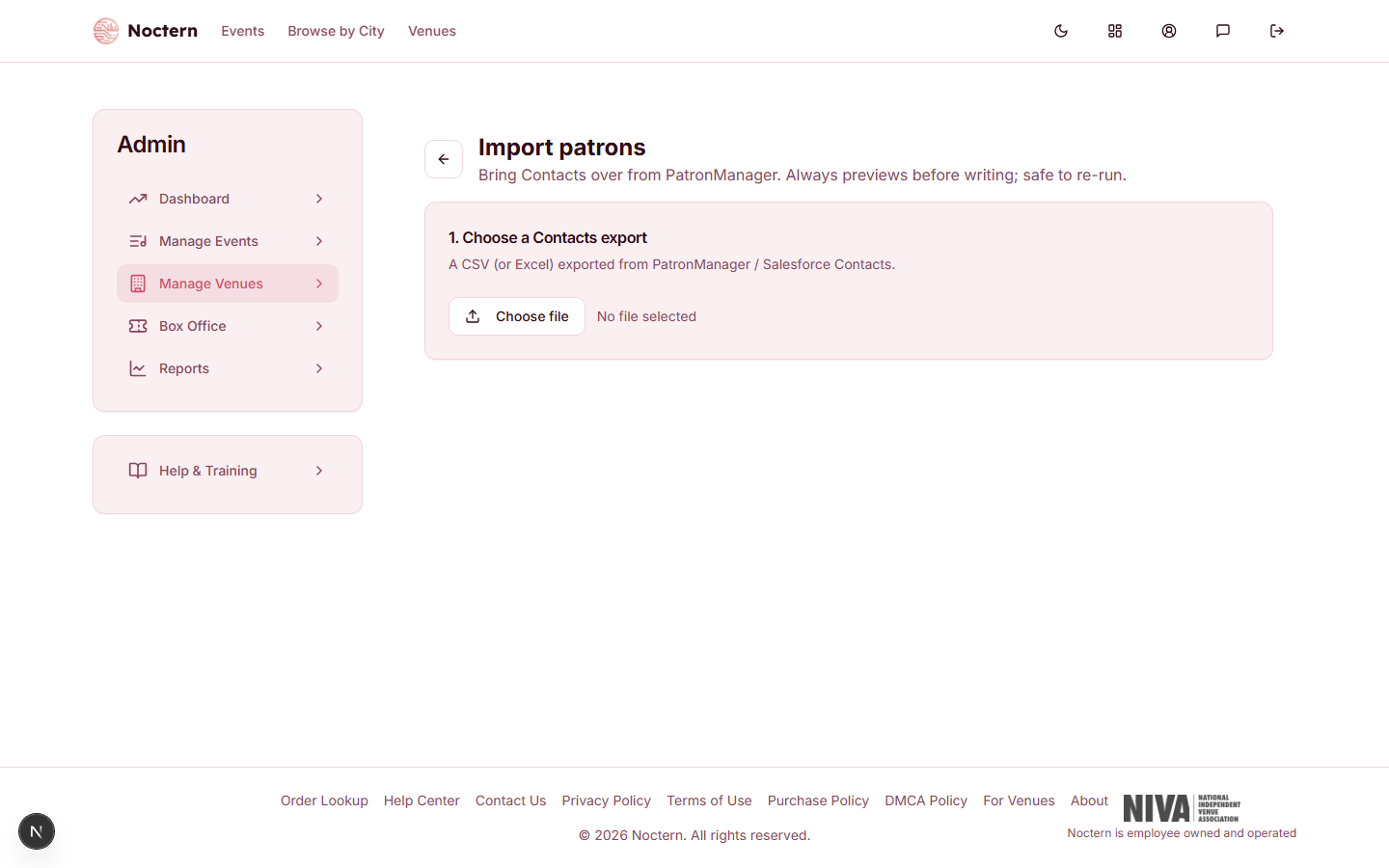
Under 1. Choose a Contacts export, click Choose file and select your
.csv,.tsv, or Excel file.2. Map columns — Noctern matches the standard columns for you. Check each one and fix any that are wrong: First name, Last name, Email, Phone, Street, City, State, ZIP, your previous system's Contact ID and Account ID, or Do-not-email flag. Set any column you don't need to — Ignore this column —. Last name is required, and mapping a Contact ID is what makes a re-import safe. If you change a mapping, click Refresh preview.
Review 3. Preview — nothing has been written yet. Badges show how many rows are to create, to merge into existing patrons, and to skip, plus how many carry warnings or repeat a Contact ID within the file. Rows with no last name are skipped.
Under 4. Import, click Import [N] patron(s) and watch the progress bar until it shows Done.
Every imported patron keeps its external system id under External records on the Details tab, so re-running the same import later updates existing records instead of duplicating them.
An import never clears an existing opt-out. If a patron is already marked do-not-email or do-not-mail in Noctern, they stay that way no matter what the file says — to re-subscribe someone, edit their own patron record.
After a big import, open AdminVenues[venue]PatronsDuplicates (the Possible duplicates page) and click Recompute candidates — imports don't trigger duplicate detection automatically.
What this page does not do
This importer only handles Contact records. It does not bring over historical ticket orders, gifts, pledges, or households — ask Noctern support to run that one-time migration for you; it isn't something staff self-serve from this page. There's also no custom-field mapping option in the column-mapper today; custom field values from a previous system need Noctern support to map as part of that same migration.
Once history is migrated, imported orders and gifts are clearly labeled as imported and are never counted as Noctern revenue — they're display-only history so nobody mistakes them for a live Noctern sale when reconciling numbers.
Watch out
Column mapping matters more than it looks. Noctern recognizes an existing patron by their Contact ID first, then by email plus last name, or name plus ZIP — so an email or Contact ID column mapped to the wrong field can quietly create duplicate patrons instead of merging into existing ones. Always check the Preview counts before importing.
- Open the demo venue's Import patrons page (Patrons → Import) and step through Choose file → Map columns → Preview without actually importing anything.
- Note which fields are available in the column mapper, and which aren't (there's no custom-field option).