
A household groups a family or organization's patrons under one shared name, mailing address, and combined giving total — without changing anyone's individual record. A patron can belong to only one household at a time.
Before you start
- Venue Admin. Any venue admin can open the Households list and a household's page.
- Creating a household and searching for members to add both go through patron records, so for those you also need the Donor data permission (set on the Team page).
- Box-office staff can't view or edit households.
Creating a household
From a patron's detail page, click Create household (under their name, or on the Details tab). To put them in a household that already exists, click Add to household… instead and search for it by name.
Noctern names the household automatically — "The [Last Name] Family" when the patron has a last name — adds that patron as the primary contact, copies their address as the shared mailing address, and opens the new household's page. You can rename it afterward.
The household page
Go to AdminVenues[venue]Households and open a household. The list can be searched by household name and sorted by Name or Lifetime giving.
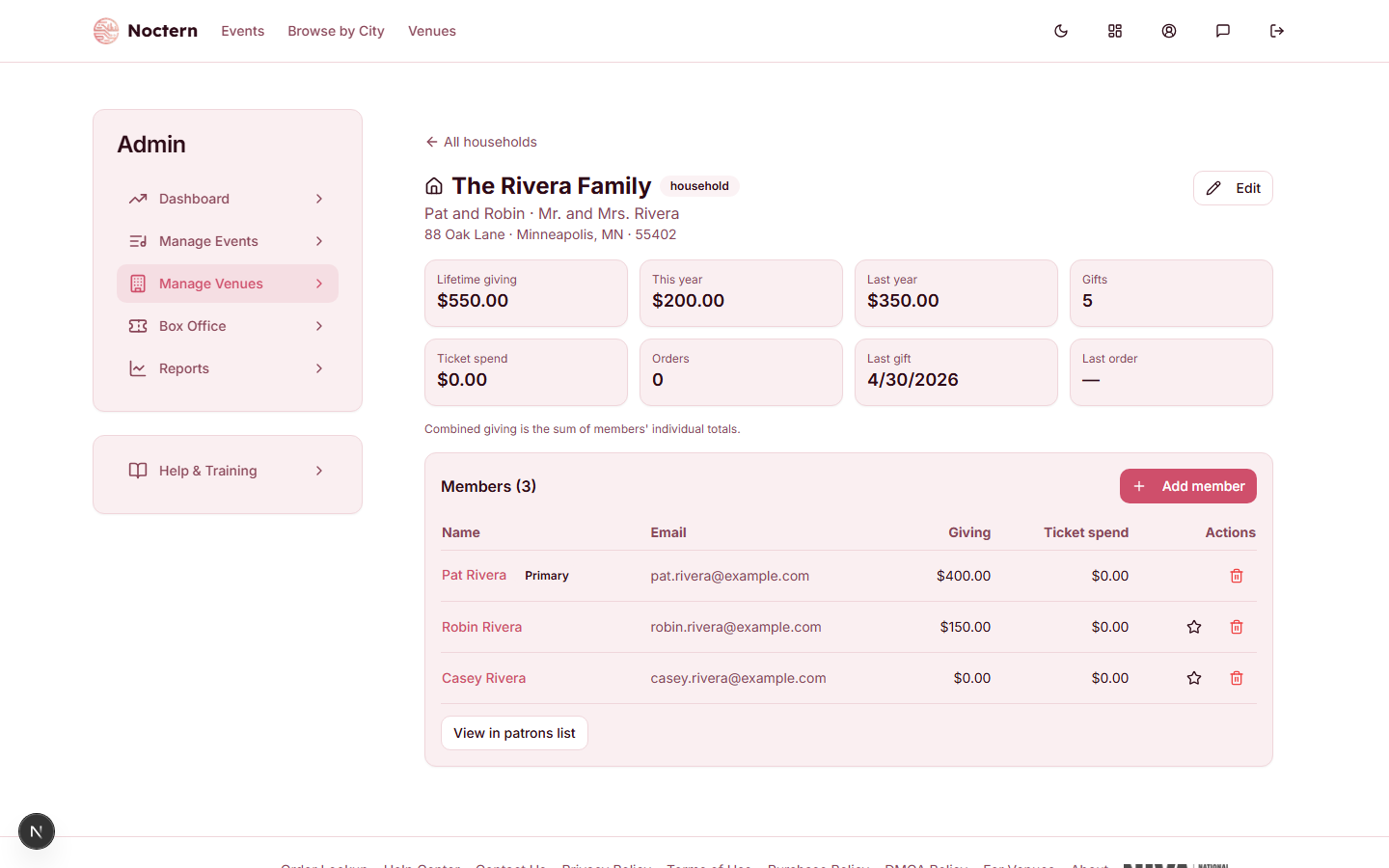
Eight combined tiles run across the top: Lifetime giving, This year, Last year, Gifts, Ticket spend, Orders, Last gift, and Last order — this is where the year-over-year giving comparison lives (the patron detail page itself only shows lifetime totals). Combined giving is derived by summing members' own totals, not a separate source of money — it updates shortly after a member's giving changes, and a member's individual total is never affected by joining or leaving a household.
Click Add member to search for a patron by name or email, then click Add. A patron already in another household can't be added — you'll get an error; remove them from their current household first. A household holds up to 50 members.
Use the star icon to Make primary, or the trash icon to Remove a member. You can't remove the primary contact while other members remain — make someone else primary first. Removing the last member deletes the household.
Click Edit to open the Edit household dialog and set the household name, type (Household or Organization), informal salutation (e.g. "Bob and Jane") and formal salutation (e.g. "Mr. and Mrs. Robert Smith") for mail-merge use, and the shared mailing address. Click Save.
The shared mailing address is used for exports only — it never overwrites an individual member's own address on their patron record.
Click View in patrons list to see all of a household's members filtered on the Patrons list.
Household changes — creating, editing, and adding or removing members — are recorded in the Activity log.
Households in campaigns
When composing a campaign, checking One email per household under Send options sends a single email per household instead of one per patron — keeping the primary contact if they're emailable, or the first emailable member if not. This reduces the recipient count shown in the campaign composer.
Watch out
A patron can only be in one household. If you need to move someone, remove them from their current household before adding them to the new one — use the trash icon on the household page, or Remove from household on the patron's Details tab.
- Open a household in the demo venue and check the combined giving tiles against the sum of each member's own giving.
- Try adding a patron who's already in another household — confirm you get an error and they aren't added.
- Click Edit and note the informal and formal salutation fields in the Edit household dialog.