
The box office is where you sell tickets, look up patrons, and take payment in person. It's a separate, simpler area of the admin dashboard from the full venue-admin tools.
The screenshots in this guide use the light theme, which is the default. If your app is showing dark mode, click the sun icon at the top right to switch back to light.
Signing in
Sign in with the email and password your venue admin gave you.
Navigate to AdminBox Office.
Choose a venue, then choose an event from the dropdowns at the top.
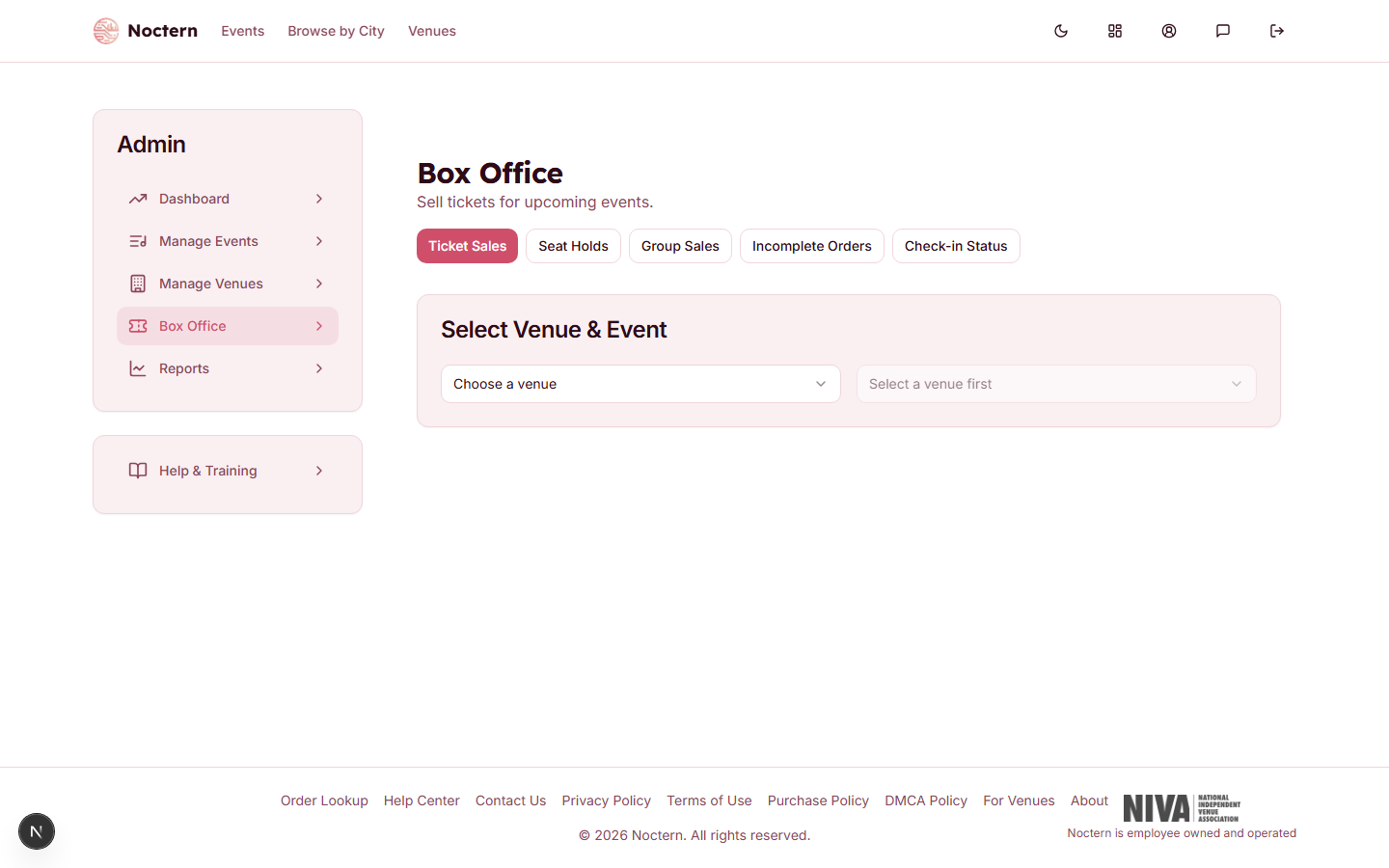
The venue dropdown lists only the venue(s) you've been granted access to.
What you'll see
- The event dropdown only lists upcoming events — past events don't appear for ticket sales.
- An event that is still a Draft (not yet published) is marked with a Draft badge. You can sell tickets for a draft at the box office, and an amber warning — "This event is a draft - it isn't public yet" — reminds you before you take payment. Customers can't buy a draft online.
- Along the top of the page, five buttons: Ticket Sales, Seat Holds, Group Sales, Incomplete Orders, and Check-in Status. There's no settings or configuration section here.
There's a sixth box-office page, To Mail, that has no button anywhere — you reach it by typing the address. If your venue posts tickets, bookmark it: see The To Mail List.
Finding a performance fast
Once a venue is selected, a search box appears above the venue/event pickers — a faster way to get to a performance than scrolling the event dropdown, especially for a venue with a long season.
- Type a show title, an artist name, or a date word — "dec 16", "friday", "tonight" all work, and typos are tolerated (a misspelled word within one letter of the real one still matches).
- Use ↑ / ↓ to move through the results and Enter to jump straight into selling the highlighted performance — no need to touch the dropdowns below.
- Press Esc to clear the search, or press it again to close the results.
- Press / anywhere on the page to jump straight to the search box, as long as you're not already typing in another field.
- Each result shows the date, time, and space (for venues with more than one room), plus a running sold/capacity count so you can see at a glance how a show is doing before you open it.
What box office staff can't see
The box-office role is scoped tightly to selling and checking in tickets. It does not have access to:
- Manage Events or Manage Venues — event and venue setup
- Reports — every report is refused for the box-office role
- Fundraising and venue Settings
- The venue's Activity Log — even though every sale, refund, and exchange a box-office user makes is recorded there for a venue admin to review
Your actions are always logged, even though you can't view the log yourself. If something looks wrong with an order, a venue admin can trace exactly who did what and when.
Patron records
The venue's Patrons list isn't one of your box-office buttons, but you are not locked out of it: the box-office role is allowed to read it, so if you open or bookmark that page you'll get the list. What you can do with a patron is the real limit — you may search for patrons and create a new one, but not edit or delete an existing record. That's the same permission you use from inside a sale (see the next topic).
Patron records include giving history and personal details. Treat the list as confidential and work from inside a sale wherever you can — if a patron's details are wrong, flag it to a venue admin rather than working around it.
Staying signed in
Your session stays active across page reloads and browser restarts until you sign out. If you haven't used the app in a while, the browser refreshes your sign-in automatically in the background — you shouldn't need to log in again mid-shift. If you ever do get signed out unexpectedly, just log back in and pick up where you left off; nothing about an in-progress sale is lost on the server.